
GSA “Cannot Find Items”: Matching Labor Category Titles, UCIDs and Units
ExcelGurus is not affiliated with, endorsed by, or acting for the U.S. General Services Administration (GSA). This guide describes GSA’s published instructions as of MAS TDR User Guide v2.0 (September 2026), as read on October 22, 2026; GSA updates them, so check its current pages before you report. It is not legal or tax advice.
When SRP shows a “Cannot find items” error, GSA’s Help with TDR page gives one cure: check that the values you reported match your FCP catalog, or your approved Price Proposal Template, exactly. For a services row that comes down to four values. The labor category title must be exactly as on your GSA price list, character for character, unless the row carries a valid UCID. The UCID must be exactly as on your Services Plus File. The unit must be the one on your catalog, which for hourly labor means HR for standard hours and OT for non-standard hours. The SIN must be one awarded on your MAS contract. EG TDR Reporter, an Excel workbook for Windows that prepares and checks the monthly upload file, writes each hourly row’s title, unit and UCID from the price list you keep in its Setup, so the match is made once there instead of on every invoice line.
What GSA says about the error
GSA’s Help with TDR page lists “Cannot find items” among the common Sales Reporting Portal issues, with one line of guidance: check that values match your FCP catalog or approved Price Proposal Template exactly, and ask GSA’s TDR team for help (the page gives its contact). It does not say which fields SRP compares. Its section on noncompliance names the common issues: incorrect part numbers, labor category titles, UCIDs, manufacturer names, SINs and units of measure. For a services contractor, the titles, UCIDs, units and SINs are the ones to check.
SRP’s user guide adds that reported sales are validated against the contractor’s catalog, so that what is reported is on the approved contract catalog, and that notifications are sent for items that do not match. It describes that check for TDR contracts with product SINs, or with both products and services.
Which catalog to match
GSA names three sources: the FAS Catalog Platform (FCP) Product File, the FCP Services Plus File, and, if your company is not on FCP, your approved Price Proposal Template. SRP’s upload instructions ask for the labor category name matching your company’s current approved price list, as posted on FCP or GSA eLibrary. Current is the word that matters: after a modification that adds or renames a labor category or changes a UCID, match the version now in effect.
Labor category titles
User Guide v2.0, Table 5.5, sets the rule for the Description of Deliverable on an hourly labor row:
- Without a UCID: the title exactly as shown on your GSA catalog, a one to one match. Internal labor category names will trigger a compliance flag.
- With a valid UCID: still enter the title, but it need not match character for character. A blank description causes a rejection either way.
- SCLS labor categories: the title with the wage determination and its revision, in this format, punctuation included:
LCN:Administrative Support, WD:2015-4623, REV:29. The wage determination is the one that applies to the task order, based on location.
Exactly means exactly. “Sr. Systems Engineer” is not “Senior Systems Engineer”, and “Project Mgr II” is not “Project Manager II”. SRP’s upload instructions add a test of substance: there must be a one to one relationship of duties and skills between your internal name and the GSA title, and where there is not, report the title from your approved price list.
GSA’s pages differ on one detail. SRP’s upload instructions show an hourly title with a prefix, for example LCN:Mechanical Engineer 3, and spell the revision Rev:. User Guide v2.0 uses the LCN:, WD: and REV: prefixes only for SCLS labor categories, and writes REV: in capitals. This guide follows User Guide v2.0.
UCIDs
A UCID, or Unique Catalog ID, is created in the FAS Catalog Platform and links your internal naming to the offerings on your approved Services Plus File. GSA’s rules for it:
- Report it for any service or item that has one in your FCP file (Help with TDR).
- Exactly as on your Services Plus File. Table 5.5 says it must be a 1:1 match to avoid a rejection and/or compliance flag.
- One per worksite rate. Where your price list has different rates for one labor category at different worksites, government site and contractor site for example, enter the UCID of the rate you are reporting against (SRP’s upload instructions).
- Blank when there is none: a labor category without a UCID, and a fixed price solution put together for one order from several of your offerings, which has no UCID of its own (User Guide, section 6.3.1). A fixed price service or solution with an established UCID carries it (Table 5.4).
- At most 40 printable ASCII characters.
UCID is one of the fields in GSA’s trial period, which runs from July 1 to December 31, 2026. Until it ends GSA does not take formal enforcement action for good-faith errors in it; afterwards your contracting officer can.
Units of measure
Table 4.1 asks for the unit as it is listed on your approved FCP catalog file or Price Proposal Template, and SRP’s instructions allow only the approved abbreviations on its Table 1. For hourly labor, Table 5.5 is specific:
- With an FCP catalog file (the Product File or the Services Plus File): HR for standard hourly pay and OT for non-standard hourly pay.
- With a Price Proposal Template: the unit on the template, from SRP’s Table 1.
- In all cases, not EA: the User Guide says EA on hourly labor may cause a rejection.
A fixed price line takes the unit on the invoice, or 1I (fixed rate) when the invoice gives none (Table 5.4).
SINs
The SIN on each row must be one awarded on your MAS contract; GSA eLibrary lists your awarded SINs under your contract number. When an order covers more than one SIN, report the one with 51% or more of the order’s value. A SIN that is not on your contract is on GSA’s list of common noncompliance issues.
After a notice or a flag
During the grace period and the trial period, the User Guide says, you may receive system-generated compliance flags by email that point out reporting discrepancies, and you are expected to use them to correct your data and your process. Work through one in this order:
- Open your current catalog, on FCP or GSA eLibrary, or your approved Price Proposal Template.
- Compare each value the notice names with it: the title, the UCID, the unit and the SIN.
- Correct the place the value comes from, the name list or price list you report from, so next month does not repeat it.
- Correct the months already reported through Adjust Data (see Correcting a GSA TDR report).
For questions about the error itself, GSA’s Help with TDR page points to GSA’s TDR team. For a notification about items that do not match your catalog, SRP’s user guide points to the acquisition workforce member assigned to your contract.
Matching once in EG TDR Reporter
In EG TDR Reporter the match is set up once, on the Setup page. For each contract you choose where its catalog comes from, the FCP Services Plus File or a Price Proposal Template. The price list holds each service’s title exactly as on your GSA price list, with its type, unit, UCID and price, typed, pasted, or imported from a file, GSA’s FCP Services Plus File included. Setup refuses a unit that is not on SRP’s Table 1, and EA for hourly labor.
When you import a month, each name in your accounting export that is not a title on your price list is asked once: which GSA labor category is it? The answer is remembered for the months after. The file then carries the title from your price list, not the name from your invoice: for an hourly labor category exactly as you entered it, for an SCLS labor category in the LCN, WD, REV format, with the unit and the UCID of the same price list item. Review shows a Warning for a title that differs from your GSA price list on a row without a UCID, for a UCID missing on a contract that reports from a Services Plus File, and for a SIN not awarded on the contract. After a contract’s free month, the free edition shows only the number of findings; a license shows every one.
The checks compare your rows with the price list in Setup, so keep that price list in step with your catalog: after each modification, update it, by importing the new Services Plus File for example.
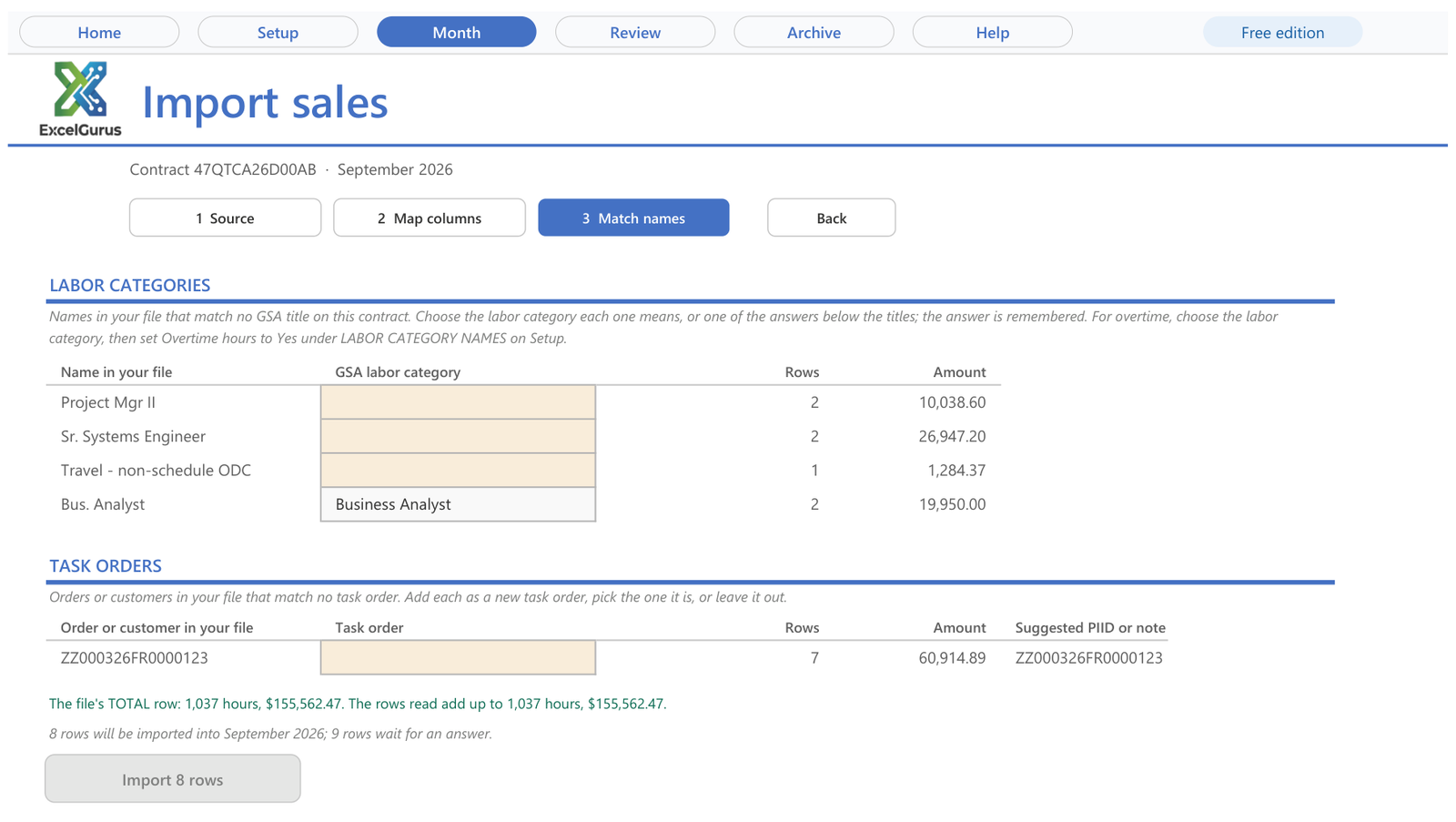
Names your books use are matched once to the GSA labor category they mean, and the file gets the GSA title. Screen from EG TDR Reporter, the Excel workbook that prepares and checks this file, with sample data.
Common questions
Do I have to use the exact GSA title if my books call the role something else?
Only on a row without a UCID. User Guide v2.0, Table 5.5, asks for the title exactly as on your GSA catalog, a one to one match, and says internal labor category names will trigger a compliance flag. With a valid UCID in the UCID column, you still enter a title, but it need not match character for character.
What if my company is not on the FAS Catalog Platform?
Match your approved Price Proposal Template instead: GSA’s Help with TDR page names it as the source for companies not on FCP, and User Guide Table 5.5 asks for the unit on the template. UCIDs come with a Services Plus File, so without one the UCID column stays blank and the title must match exactly.
Who can help if the error stays?
GSA’s Help with TDR page sends Cannot find items questions to GSA’s TDR team, and gives its contact on that page. SRP’s user guide sends questions about a catalog-match notification to the acquisition workforce member assigned to your contract, and the Vendor Support Center handles SRP technical problems.
Check every row before it reaches SRP
EG TDR Reporter prepares and checks the monthly upload file from your accounting export. Each name in your books is matched once to a labor category on the GSA price list you keep in Setup, and every hourly row takes its title, unit and UCID from that list (OT for overtime hours). Review flags a different title, a missing UCID or a SIN not awarded on your contract before the file exists. Each GSA contract gets one free month, the first month you check, with every finding and the GSA upload file.
See EG TDR ReporterOne free month per GSA contract, no card needed. Excel for Windows.
Sources
GSA’s own pages, as read on October 22, 2026. They change; the current versions are the ones that count.
- GSA, Help with Transactional Data Reporting (www.gsa.gov), last updated Oct 8, 2026: the UCID row, the Cannot find items row, and Noncompliance, corrections and assessments
- GSA, Multiple Award Schedule TDR User Guide, Version 2.0 (PDF) (www.gsa.gov), updated September 2026: section 2.3, Table 4.1, Tables 5.4 and 5.5, section 6.3 and the version history
- SRP user guide, MAS File Upload Instructions (srp.fas.gsa.gov), Description of Deliverable, Unit Measure and Unique Catalog Item ID (UCID)
- SRP user guide, Report Data Overview (srp.fas.gsa.gov), the note on validating reported sales against the contractor’s catalog
- SRP user guide, MAS Tables (units of measure, non-federal entity and federal customer codes) (srp.fas.gsa.gov)
- GSA eLibrary (www.gsaelibrary.gsa.gov)
More in this series: Reporting Services on GSA TDR: Hourly, SCLS, Fixed Price and Cloud SIN Rows · Why SRP Rejects a TDR Upload File, and How to Fix Each Cause · How to Prepare Your Monthly GSA Sales Reporting (TDR) Upload File · All GSA Sales Reporting guides
★★★★★
“Most likely one of the best freelancers I’ve had the opportunity of working with. I would highly recommend David for any complex VBA coding. We’ll be working with him again in the future.”
VBA Development Client · via Upwork, 2020
5.0★ across 230+ client reviews · 100% Job Success on Upwork · Building Excel tools since 2010 · Read the reviews →