
Why SRP Rejects a TDR Upload File, and How to Fix Each Cause
ExcelGurus is not affiliated with, endorsed by, or acting for the U.S. General Services Administration (GSA). This guide describes GSA’s published instructions as of MAS TDR User Guide v2.0 (September 2026), as read on October 22, 2026; GSA updates them, so check its current pages before you report. It is not legal or tax advice.
SRP rejects a monthly TDR upload file for the reasons GSA’s own pages name: a Total Price that is not the quantity times the unit price rounded to the cent, an earlier month of a contract in the file that has not been reported, or a required field left blank. The User Guide adds that EA on an hourly labor category may cause a rejection. SRP then marks the upload Rejected, sends an email and shows the reason on its File Upload page: fix the file and upload it again before the month’s due date. GSA’s pages also fix the exact values several columns take, such as units from SRP’s list. EG TDR Reporter, an Excel workbook for Windows, prepares and checks the file and holds it back while any of these causes stands.
What SRP tells you, and what to do next
After you upload the file and confirm your data, SRP sets the reporting status to Submitted or Rejected, and sends an email either way. For a rejected file, read the reason on the File Upload page under Report Data, correct the file, and upload it again. A rejection is not a report: the month is still due within 30 calendar days after it ends, so leave time to upload twice. A month SRP already shows as Submitted is changed through Adjust Data instead, where the file you upload replaces the whole month (see Correcting a GSA TDR report).
The causes GSA names as rejections
A total that is not quantity times price
SRP checks Total Price (column K) when you submit, and its upload instructions say it rejects the submission when the total is wrong. The total is the quantity (G) times the price paid per unit (J), rounded to two decimals. GSA writes it as =ROUND((G2*J2),2), but the template is not to carry formulas, so type the result as a value. SRP also rounds a quantity or a price with more decimals to two when it processes the file, so type both at two decimals. Rounding in your books is one way it goes wrong: 37.25 hours at $142.35 is $5,302.5375, which rounds to $5,302.54, so an invoice line of $5,302.53 does not match. Find which of the hours, the rate or the amount is wrong, correct it in your accounting system, and export the month again.
An earlier month not reported
SRP’s Report Data instructions say reports must be submitted in month order: if a contract in the file has not been reported for a previous month, the system rejects the upload. Its FAQs add that every missed month comes first, as zero sales if there were none. Report the missing month, by file, or by Form Entry for a month without sales, then upload the current month again.
A required field left blank
For services, SRP’s upload instructions list the required columns as Contract Number, Order Number, Description of Deliverable, Unit of Measure, Quantity of Item Sold, SIN, Unit Price, Total Price and Non-Federal Entity, and say not to leave any of them blank. User Guide v2.0’s tables say a blank contract number, order number, unit, quantity or price will result in a rejection, and so will a blank description, even on a row with a UCID. The SIN and the non-federal entity describe the task order, not the invoice line, so fill them in once for the order and carry them to all its rows.
EA on an hourly labor category
Table 5.5 of the User Guide says to avoid EA (each) for hourly labor rates, because it may cause a rejection. Report standard hours in HR and non-standard hours, overtime for example, in OT; with a Price Proposal Template instead of an FCP catalog file, use the unit on the template, from SRP’s Table 1.
Values GSA allows only in a fixed form
For the columns below, GSA’s pages give the exact values to use without saying what SRP does with any other. Clear each one before you upload. The last column is the finding’s name on EG TDR Reporter’s Review page.
| What GSA’s pages say | How to fix it | Finding in EG TDR Reporter |
|---|---|---|
| Contract number (A): your GSA contract number, which begins 47 or GS, at most 16 characters, no dashes required. | Type it as on your award, without dashes, on every row. | Contract number SRP does not take |
| Contract number, order number and SIN: letters, digits, spaces and – / ( ) . _ only. At most 130 characters in the order number, 15 in the SIN, 1,000 in the description, 40 in the UCID. | Remove the other characters, or shorten the value. | Too long, or characters SRP does not take |
| Unit (F): only the approved abbreviations on SRP’s Table 1. | Use the code, not the word: HR, not Hours. | Unit not on SRP’s list |
| Returns take the unit RTN; volume and prompt payment discounts take VD or PPD. | Give a sale its own unit, and a return or a discount its code. | Unit does not fit the row |
| A return or discount row has a negative quantity, a positive unit price and a negative total. | Check the row’s signs in your export; a sale has none negative. | A sign SRP does not take |
| Non-federal entity (L): exactly SCP, SDP, OTH, or N/A for a federal customer. | N/A takes the slash; NA without it belongs in column M. | Non-federal entity code SRP does not take |
| Federal customer (M): the two-character Treasury Agency Code of the agency that funded the order, from SRP’s Table 3. For SCP, SDP or OTH, NA under User Guide v2.0; GSA’s Help with TDR page still says to leave it blank. | Choose the funding agency’s code from Table 3. | Federal customer code missing; Federal customer code SRP does not take |
| Cloud service type (R): on SIN 518210C and SINs that begin with it, IaaS, PaaS, SaaS or LCAT, at most four characters. Blank on every other SIN. | Type LCAT with no trailing space (the User Guide’s tables print it with one inside the quotes). | Cloud service type |
| Manufacturer name and part number, UPC, order date, ship date and ZIP code: nothing on a services row, not even a space. | Clear those cells. | Product columns filled on a services row |
| Several contracts in one file must all be for the same reporting period. | Make one file per month. | Contracts of different months in one file |
| A month with no sales can be reported only by Form Entry. | Report zero sales by Form Entry, not by file. | No sales to report |
GSA’s pages differ on negative values. SRP’s FAQs still say the system will not accept negative values, and describe removing a sale by adjusting the month it was reported in. User Guide v2.0, Appendix 3, and SRP’s own upload instructions give the return row above, with a negative quantity and total. This guide follows User Guide v2.0; Credits, returns and discounts sets out where the pages differ.
Values that do not match your GSA catalog, behind the “Cannot find items” error on GSA’s Help with TDR page, have their own cure: see Matching titles, UCIDs and units.
The template itself
SRP’s upload instructions end with a list of what not to do to the Excel template: add tabs, change its formatting or column names, add formulas or macros, change the column order, or leave a mandatory column blank. Fill the MAS Data tab (the GWAC-MAC Data tab, which SRP’s instructions call the Non-MAS data tab, is for GWAC and MAC contracts), and when you copy rows in from another file, paste values only, so the source’s cell formats do not come along. GSA’s Help with TDR page adds: download the most current template from SRP each time you report.
The same causes, checked in EG TDR Reporter
EG TDR Reporter runs these checks on every row before it makes the file. Each of the four rejections and each row of the table above is a Block on its Review page, and Make GSA upload file stays grayed out while a Block stands. Each finding names the row, the field and where the rule comes from. A finding from a Setup record, a task order with no SIN for example, has a Fix button that opens Setup at that cell, and fixing it there fixes every row it names; a finding in your export is corrected in your accounting system and the month imported again. If you reported earlier months in SRP before you started with the workbook, set the contract’s first month in the tool on Setup.
A few findings are EG TDR Reporter’s own checks, not SRP causes, such as a row its import could not read; Review names the tool as their source. Warnings, such as a title that differs from your GSA price list, do not stop the file, though GSA may flag the row later; a price above your GSA price waits for a tick on I’ve checked this. After a contract’s free month, the free edition runs the same checks but shows only their number; a license shows every finding. EG TDR Reporter’s checks follow GSA’s published instructions as of its release and may not catch every error; passing them does not mean GSA will accept a report.
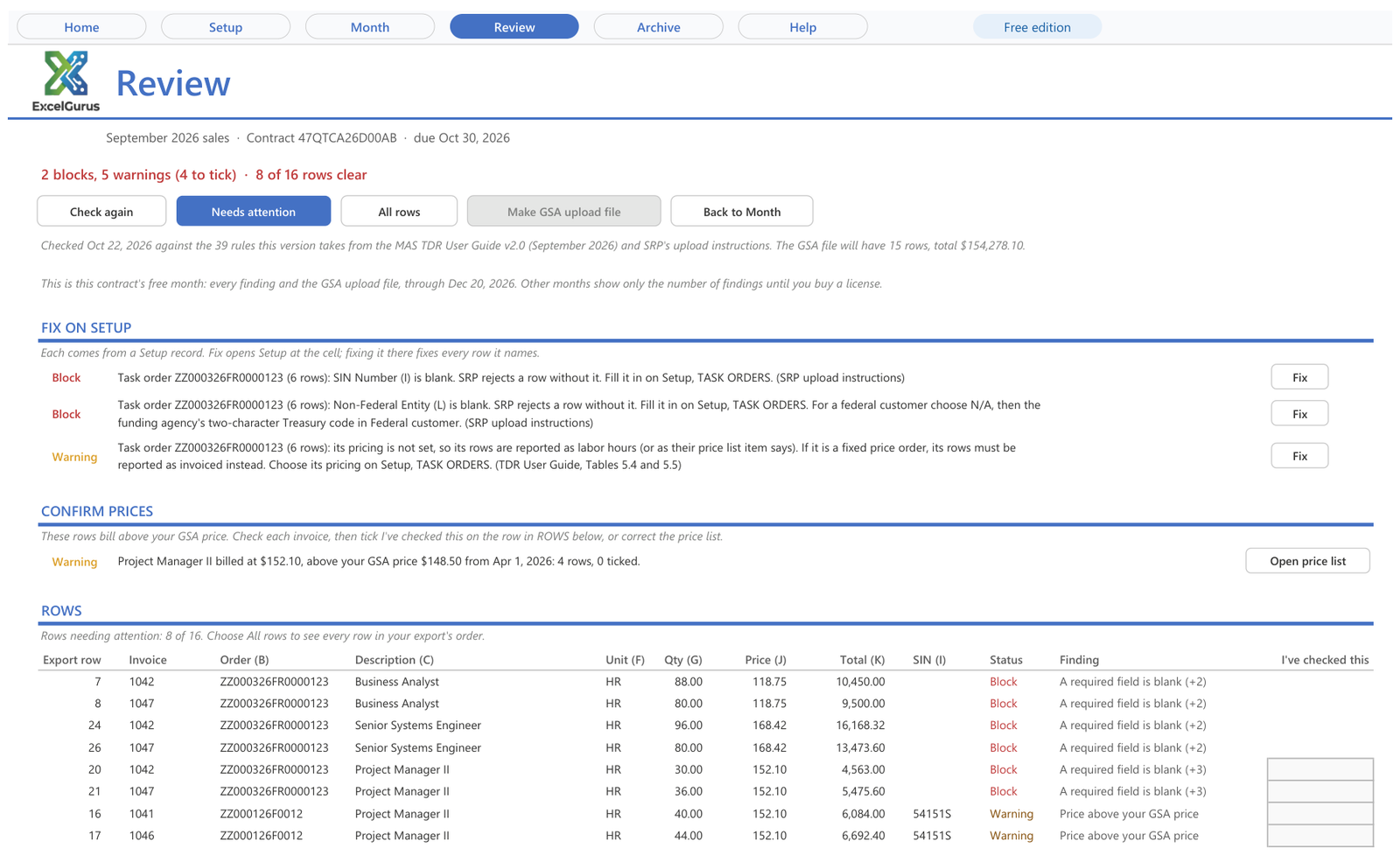
Review before the file exists: the two blocks here are required fields left blank, and Make GSA upload file stays grayed out until they are fixed. Screen from EG TDR Reporter, the Excel workbook that prepares and checks this file, with sample data.
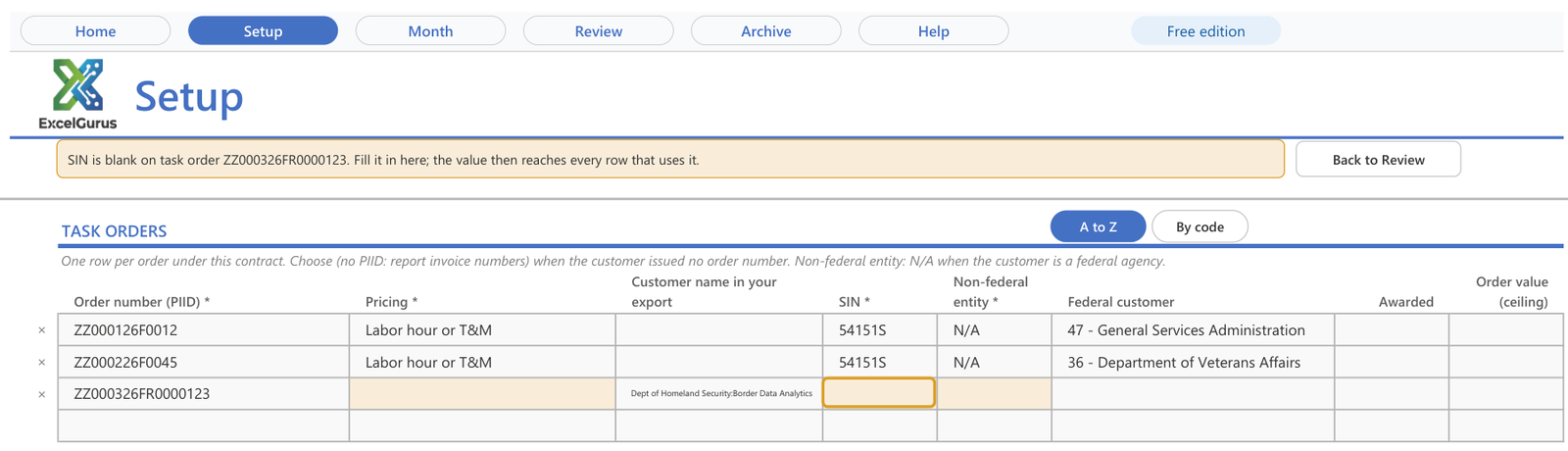
Fix opens Setup at the empty cell, so the SIN is typed once for the task order and reaches all of its rows. Screen from EG TDR Reporter, the Excel workbook that prepares and checks this file, with sample data.
Common questions
How long does SRP take to process an upload?
GSA’s Help with TDR page says processing takes from a few seconds to about an hour, depending on the number of rows. SRP then shows the status as Submitted or Rejected, and it sends an email for a failed upload as well as for a successful one.
Does a rejected upload count as the month’s report?
No. SRP defines Submitted as sales data successfully reported for the period, and a Rejected upload is not that. The month is still due within 30 calendar days after it ends, so read the reason on SRP’s File Upload page, fix the file and upload it again.
Should I use Adjust Data after a rejection?
No. Adjust Data changes a report SRP already holds, and a file uploaded there replaces that whole month. After a rejection, SRP’s instructions are to fix the file and upload it again from the File Upload page under Report Data.
Check every row before it reaches SRP
EG TDR Reporter prepares and checks the monthly upload file from your accounting export. Each rejection cause and fixed-form value in this guide is a Block on its Review page, each finding names the row, the field and where the rule comes from, and the file is not made until the Blocks are fixed. You upload the file in SRP yourself. Each GSA contract gets one free month, the first month you check, with every finding and the GSA upload file.
See EG TDR ReporterOne free month per GSA contract, no card needed. Excel for Windows.
Sources
GSA’s own pages, as read on October 22, 2026. They change; the current versions are the ones that count.
- SRP user guide, MAS File Upload Instructions (srp.fas.gsa.gov), the required columns for services, Total Price Paid, the field lengths and What NOT to Do
- SRP user guide, Report Data by File Upload (srp.fas.gsa.gov), the statuses, months in order, the special characters, one reporting period per file and the template’s tabs
- SRP user guide, Report Statuses (srp.fas.gsa.gov)
- GSA, Multiple Award Schedule TDR User Guide, Version 2.0 (PDF) (www.gsa.gov), updated September 2026: section 2.3.2, Tables 4.1, 5.4, 5.5 and 5.7, Appendix 3 and the version history
- SRP user guide, MAS Tables (units of measure, non-federal entity and federal customer codes) (srp.fas.gsa.gov)
- SRP user guide, Data Reporting Options (srp.fas.gsa.gov)
- SRP user guide, Adjust Data by File Upload (srp.fas.gsa.gov)
- GSA, Help with Transactional Data Reporting (www.gsa.gov), last updated Oct 8, 2026
- SRP FAQs (srp.fas.gsa.gov), Business FAQ 11; System FAQs 15 and 16
More in this series: How to Prepare Your Monthly GSA Sales Reporting (TDR) Upload File · Correcting a GSA TDR Report: Adjust Data Replaces the Whole Month · GSA “Cannot Find Items”: Matching Labor Category Titles, UCIDs and Units · All GSA Sales Reporting guides
★★★★★
“Most likely one of the best freelancers I’ve had the opportunity of working with. I would highly recommend David for any complex VBA coding. We’ll be working with him again in the future.”
VBA Development Client · via Upwork, 2020
5.0★ across 230+ client reviews · 100% Job Success on Upwork · Building Excel tools since 2010 · Read the reviews →