
When VLOOKUP returns #N/A, Excel could not find the lookup value in the first column of the table. Most of the time the value is there but does not match exactly: a hidden space, a number stored as text on one side, or a formula missing FALSE at the end. Check those three first, then the three less common causes below.
Want it fixed on your own file?
Send the workbook to GuruFix by ExcelGurus. You see a fixed price in about a minute, and the corrected cells before you pay.
Fix my formulaFirst, find which cause you have
Pick one row that shows #N/A and one value you can see in the table, then test them in an empty cell:
=A2=Sheet2!A5returns FALSE although they look the same: a space or a number-versus-text mismatch (causes 1 and 2).=LEN(A2)and=LEN(Sheet2!A5)give different counts: there is an extra space or an invisible character (cause 1).=ISNUMBER(A2)and=ISNUMBER(Sheet2!A5)disagree: one is a number, the other text (cause 2).
1. A hidden space or invisible character
Data pasted from a website or exported from another system often carries a space at the end, or a non-breaking space you cannot see. Wrap the lookup value: =VLOOKUP(TRIM(A2), Sheet2!A:C, 3, FALSE). If the spaces are in the table instead, clean that column once with =TRIM(SUBSTITUTE(A2, CHAR(160), " ")), then paste the results back as values.
2. A number stored as text
A code like 1042 can be a number on one sheet and text on the other; Excel treats them as different. A small green triangle in the cell corner is the usual sign. Convert the text column: select it, then Data, Text to Columns, Finish. Or match inside the formula: =VLOOKUP(TEXT(A2, "0"), Sheet2!A:C, 3, FALSE) when the table holds text, or =VLOOKUP(VALUE(A2), Sheet2!A:C, 3, FALSE) when it holds numbers.
3. FALSE is missing
Without FALSE (or 0) as the last argument, VLOOKUP does an approximate match and needs the first column sorted; on unsorted data it returns #N/A or, worse, a wrong row. Add it: =VLOOKUP(A2, Sheet2!A:C, 3, FALSE).
4. The value really is not in the table
Sometimes the match truly is missing: a new product, a typo, a customer added after the list was made. Show a clear message instead of the error: =IFNA(VLOOKUP(A2, Sheet2!A:C, 3, FALSE), "Not found"). Use IFNA rather than IFERROR, so a broken formula still shows its own error.
5. The lookup column is not the first column
VLOOKUP only searches the first column of the range you give it. If the value you search on sits further right, use XLOOKUP in Excel 365 or 2021 (=XLOOKUP(A2, Sheet2!C:C, Sheet2!A:A, "Not found")) or INDEX and MATCH in older versions.
6. The range moved when you copied the formula down
A range like Sheet2!A2:C100 shifts one row with every row you copy, until the matches fall outside it. Lock it with dollar signs, Sheet2!$A$2:$C$100, or turn the list into an Excel table (Ctrl+T) so new rows are included too.
A real fix: seven #N/A prices on one order list
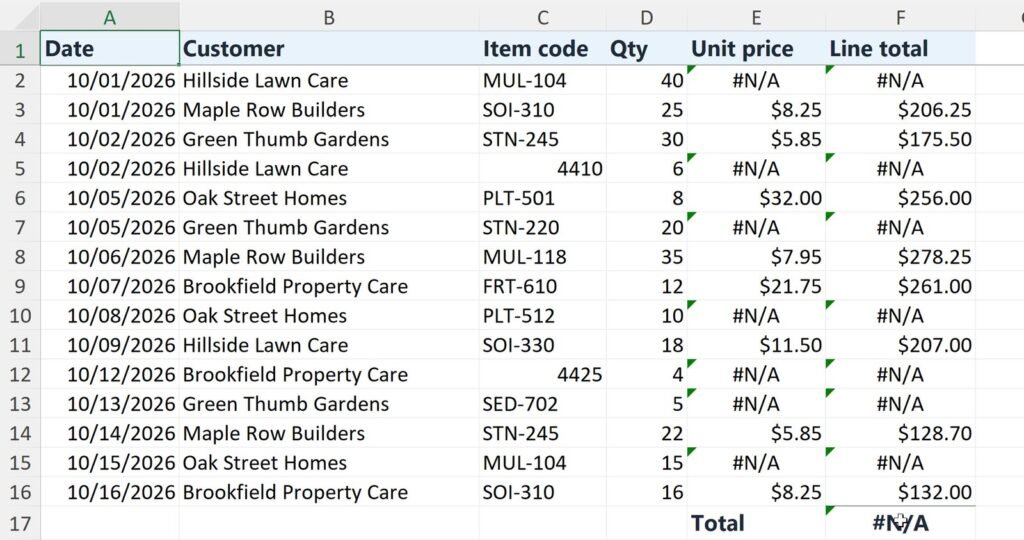
Seven unit prices on this order list show #N/A, so the line totals and the Total cannot add up, although the item codes look the same on both sheets.
GuruFix, the instant fix service from ExcelGurus, read the workbook and found two of the causes above at once: some codes had a hidden space at the end (cause 1), and two were stored as numbers on one sheet and as text on the other (cause 2). Before anything was charged, it showed the plan, then the corrected cells before and after:
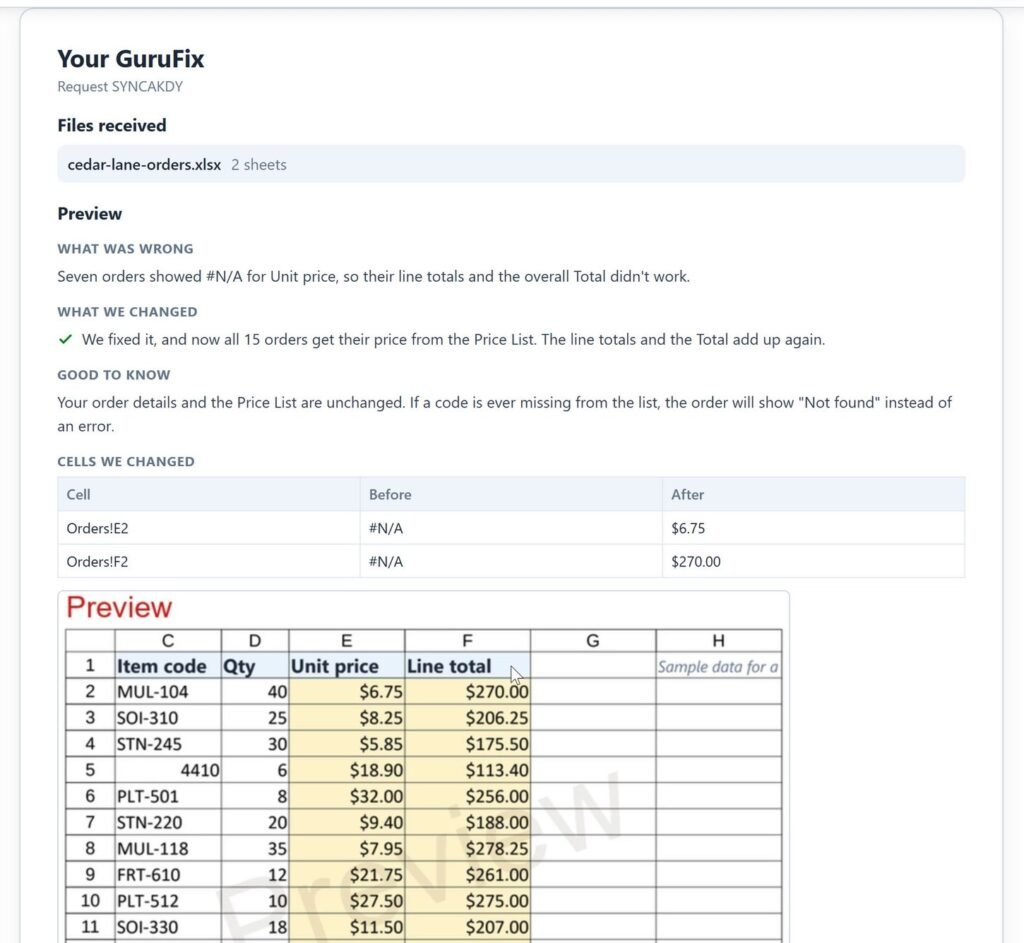
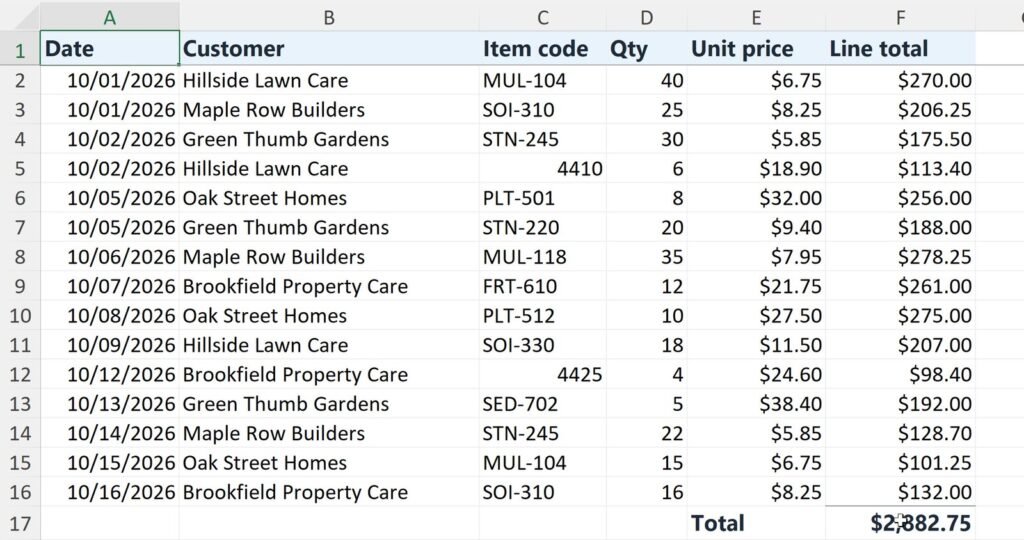
Every price filled in, and the Total adds up again. The whole run, step by step, is on Fix a Broken Excel Formula with GuruFix.
Common questions
Why does VLOOKUP return #N/A when I can see the value?
Because the two values are not exactly the same: most often a space at the end of one of them, or a number stored as text on one side. =A2=Sheet2!A5 returning FALSE confirms it; TRIM, VALUE or TEXT makes them match.
How do I hide #N/A in VLOOKUP?
Wrap the formula in IFNA: =IFNA(VLOOKUP(A2, Sheet2!A:C, 3, FALSE), "") shows a blank cell when there is no match, and leaves other errors visible.
Should I switch to XLOOKUP?
If everyone who opens the file has Excel 365 or 2021, yes: XLOOKUP matches exactly by default, can look left, and takes a “not found” value directly. In older Excel, INDEX and MATCH does the same job.
Still seeing #N/A?
Send the workbook and say which cells are wrong. We’ll find the cause and fix it.
Rather have it fixed on your own file? GuruFix by ExcelGurus fixes it at a fixed price and shows you the fix before you pay.
Every project gets a fixed-price quote before any work starts: the price you approve is the price you pay.