
Fix a Broken Excel Formula with GuruFix
To fix a broken Excel formula with GuruFix, pick Fix a formula, say in a sentence what is wrong, and add the workbook. GuruFix reads the file, shows the plan and a fixed price, makes the fix, and shows you the corrected cells before you pay. The price usually comes back within a minute, and most fixes take a few minutes.
A real run on a sample file: seven #N/A prices, fixed for $7.
Step by step
1. The problem
Seven unit prices show #N/A, so their line totals and the Total can’t add up, although the item codes look the same on both sheets.
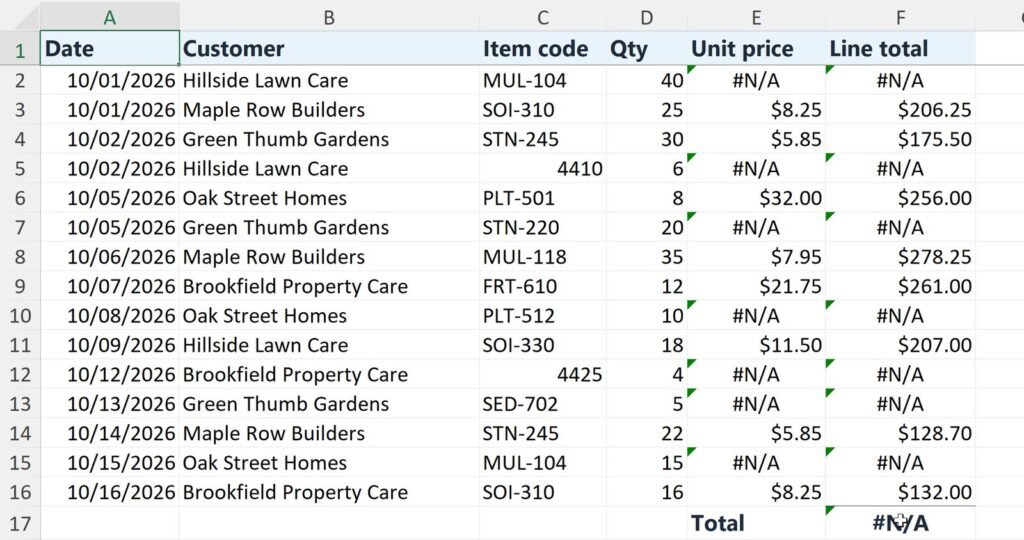
2. Pick Fix a formula and say what’s wrong
On GuruFix, pick Fix a formula and describe it the way you’d tell a colleague: what it shows now and what it should show. A sentence or two is enough.
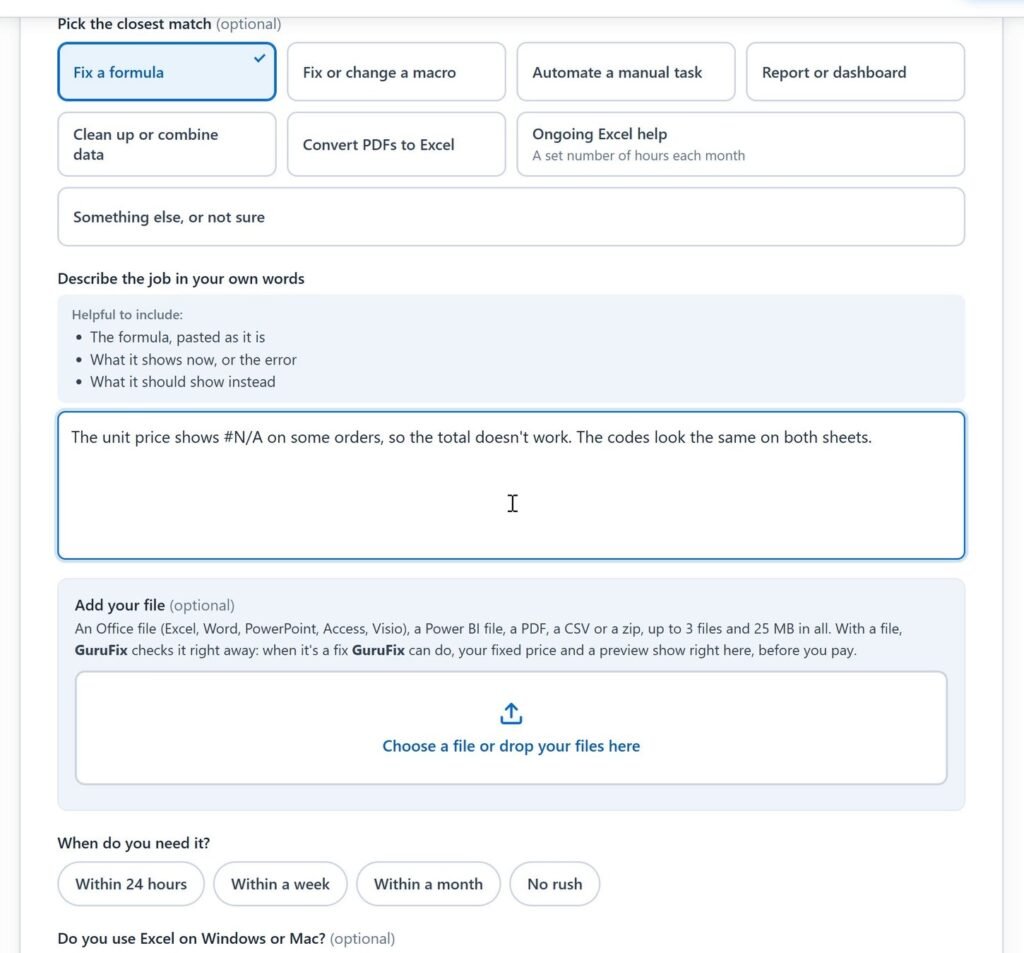
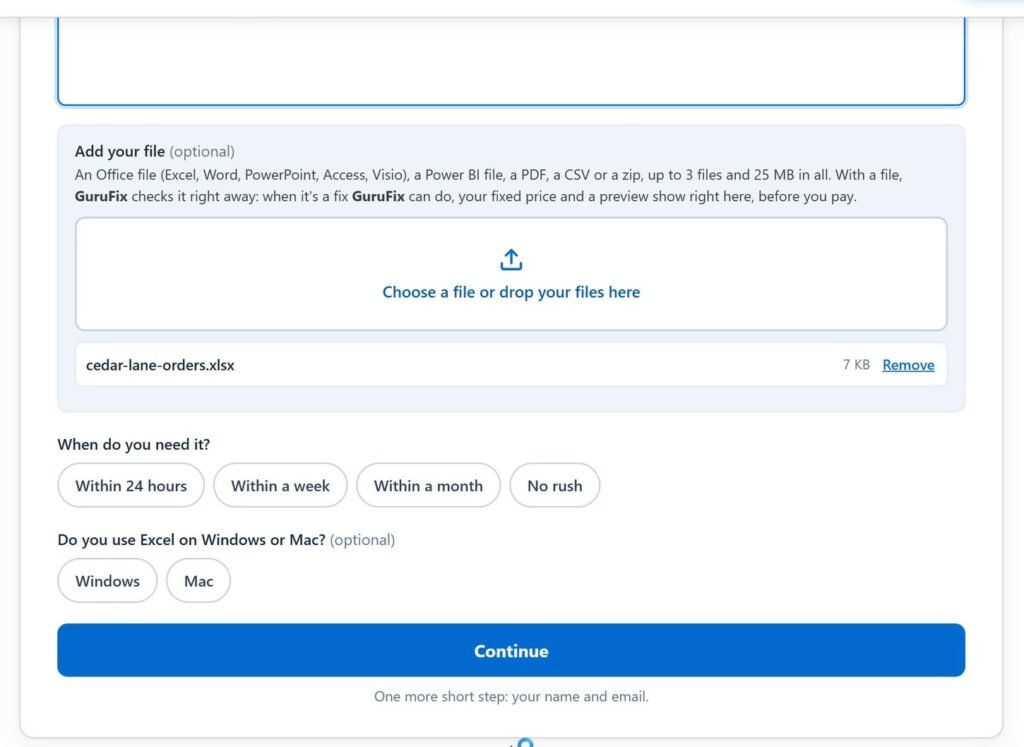
3. Add the workbook and send
Drop the workbook into the file box, or choose it. Then add your name and the email where the reply should go, and send.
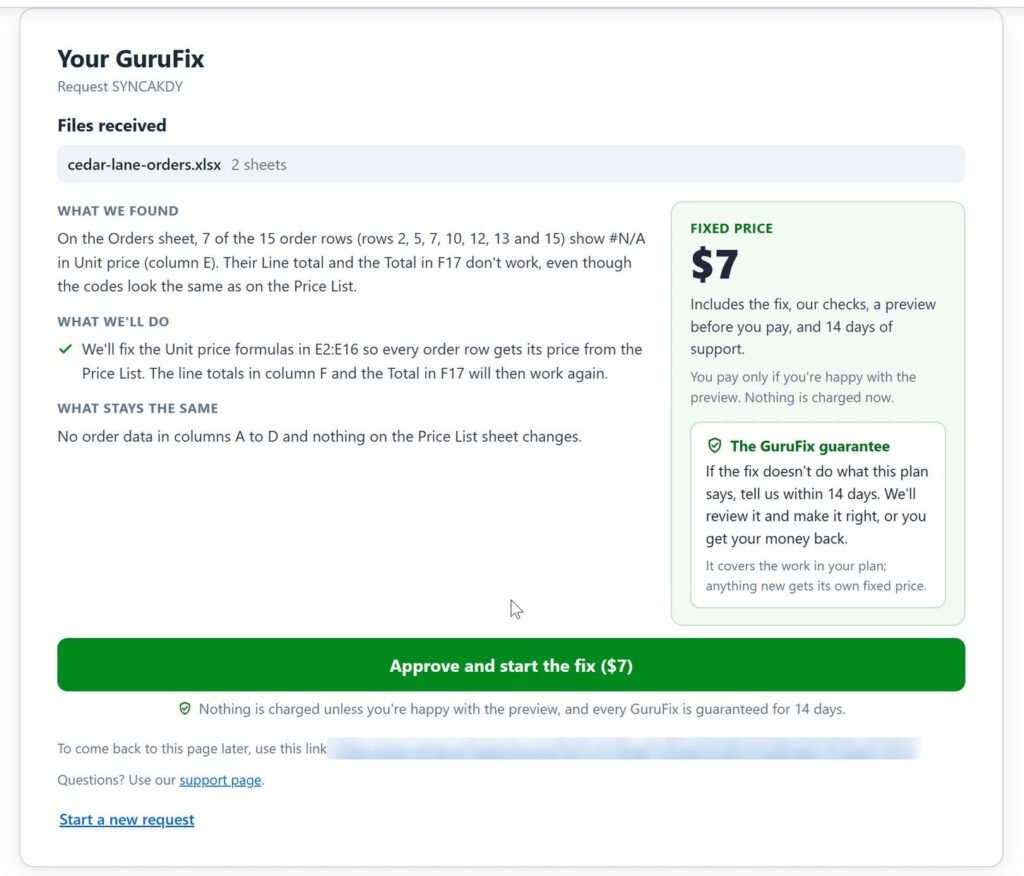
4. Read the plan and the fixed price
GuruFix reads the file and comes back with what it found, what it will change, what stays the same, and a fixed price: $7 for this file. Nothing is charged yet. If something is unclear, it asks up to three short questions first.
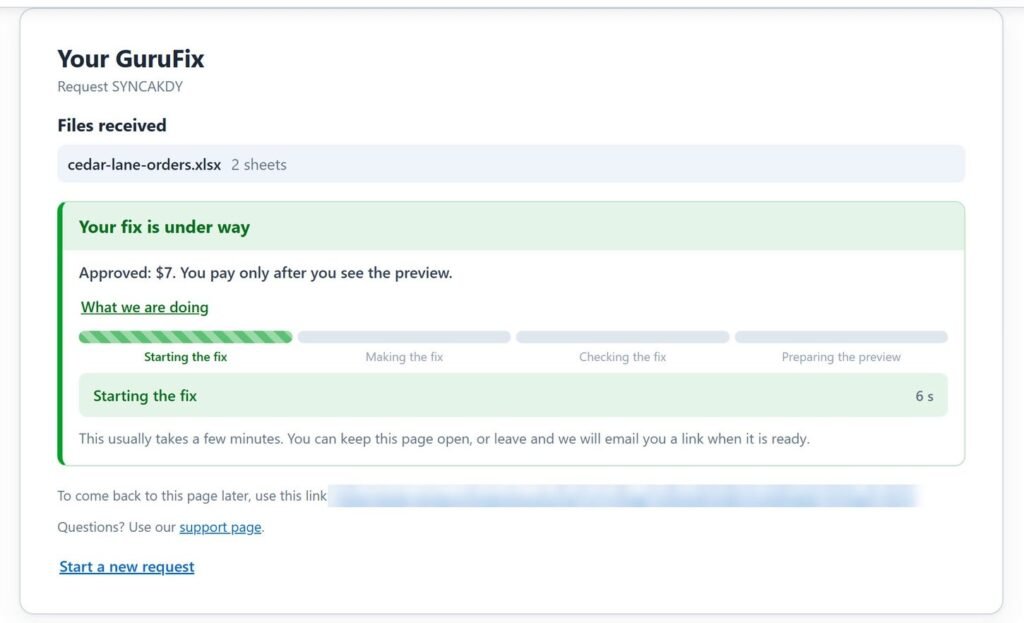
5. Approve, and the fix runs
The page shows each stage of the fix and a clock. This one took about half a minute.
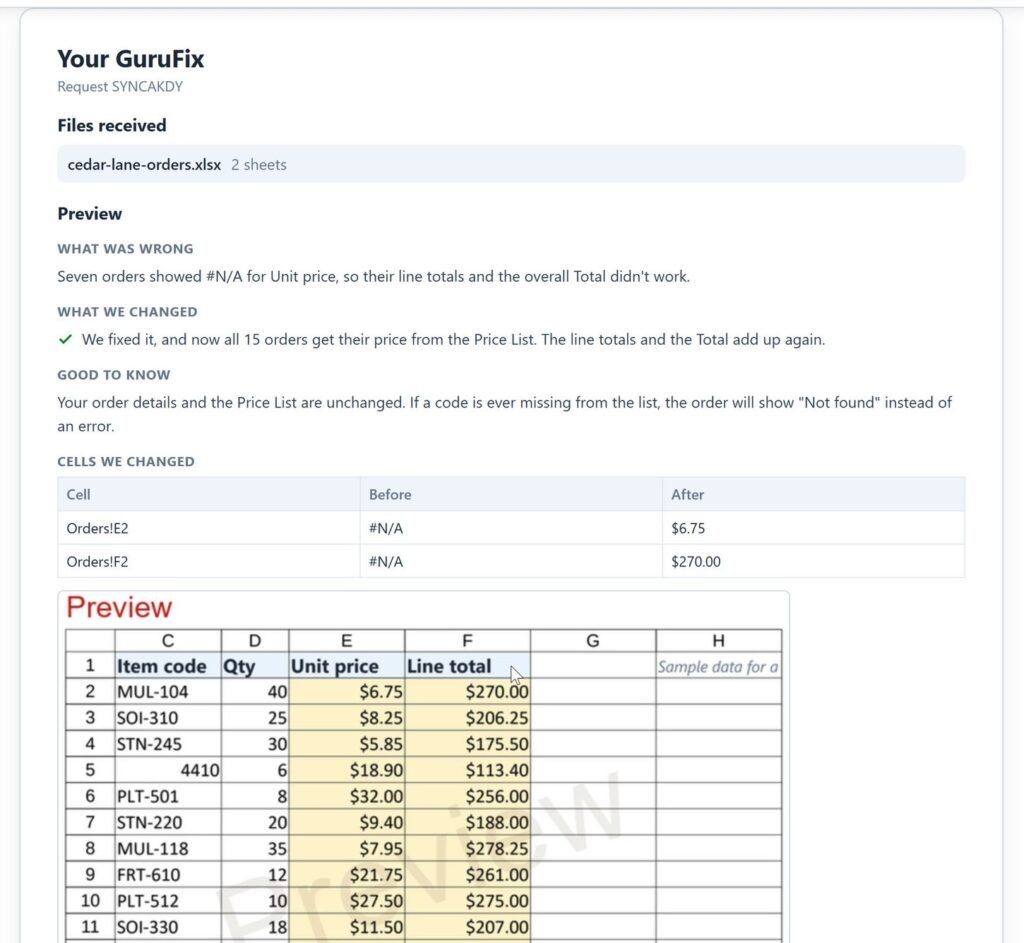
6. See the fix before you pay
The preview says what was wrong and what changed, lists cells before and after (E2 went from #N/A to $6.75), and shows a picture of the corrected sheet.
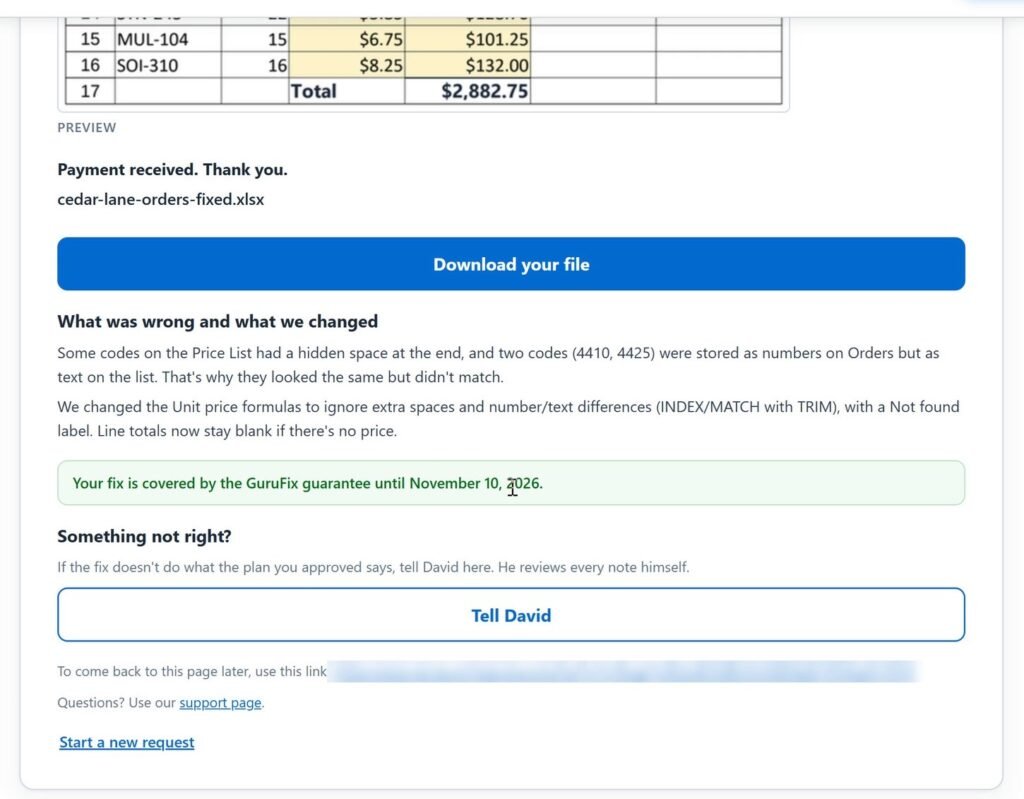
7. Pay and download
Pay the fixed price by card, then download the fixed file on the same page. A plain note says what was wrong: some codes had a hidden space at the end, and two were stored as numbers on one sheet and as text on the other. Every GuruFix is guaranteed: if the fixed file doesn’t do what the plan you approved says, tell us within 14 days of payment, and David reviews it personally and makes it right, or refunds you in full.
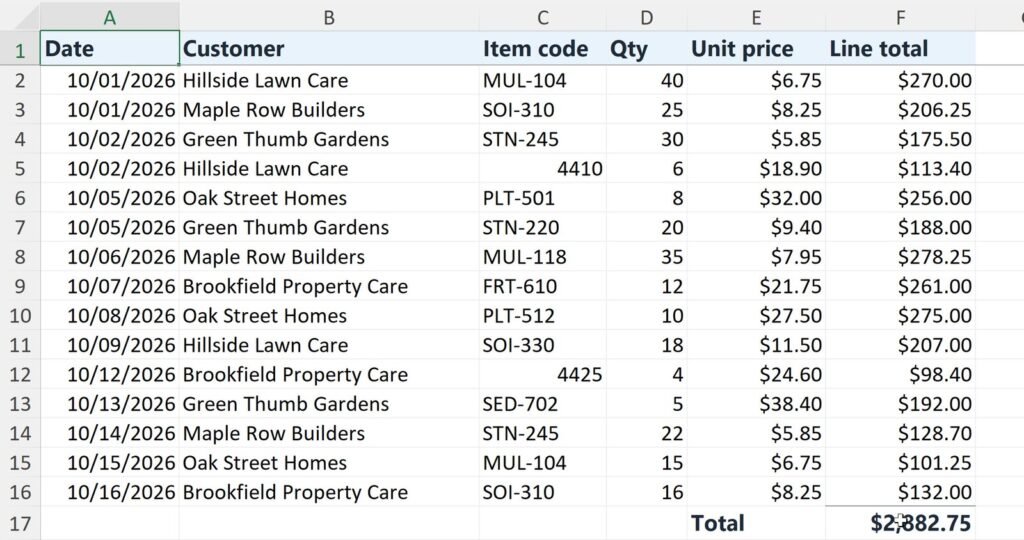
8. The result
Every price is filled in, and the Total adds up to $2,882.75.
A harder one: three faults in one workbook
A quarterly summary that disagreed with its month tabs, fixed for $18.
September read the August tab, July’s totals missed some rows, and the categories without a budget showed a divide-by-zero error. GuruFix fixed all three in one plan for one price, and the preview showed each fix before payment.
What GuruFix fixes in a formula
- Lookups that return #N/A although the values look the same: an extra space, or a number stored as text
- Totals that skip rows or read the wrong sheet
- #DIV/0!, #REF! and other errors in a formula that used to work
- Several broken formulas in one workbook, in one plan and one price
When David takes it over
Some workbooks need a person first: files in other formats such as .xls, .xlsb or CSV, workbooks with Power Query, pivot tables or links to other workbooks, and new reports or tools built from scratch. Those go to David with your files, and he replies shortly with a fixed-price quote. Nothing is charged until you agree on a price.
Common questions
What does it cost to fix an Excel formula?
GuruFix works out a fixed price for your file and shows it before any work starts. The two fixes in these videos came to $7 and $18. You pay only after you have seen the fix.
What if the fix isn’t right?
Every GuruFix is guaranteed: if the fixed file doesn’t do what the plan you approved says, tell us within 14 days of payment, and David reviews it personally and makes it right, or refunds you in full.
Is my file safe?
Your file is used only for your request. After an instant fix it is deleted 14 days after delivery, and you can ask us to delete it sooner. A copy with confidential data removed is fine.
Fix your formula
Add the workbook and a sentence about what’s wrong.
Every project gets a fixed-price quote before any work starts: the price you approve is the price you pay.