
Clean Your Excel or CSV File Before Importing Contacts into HubSpot
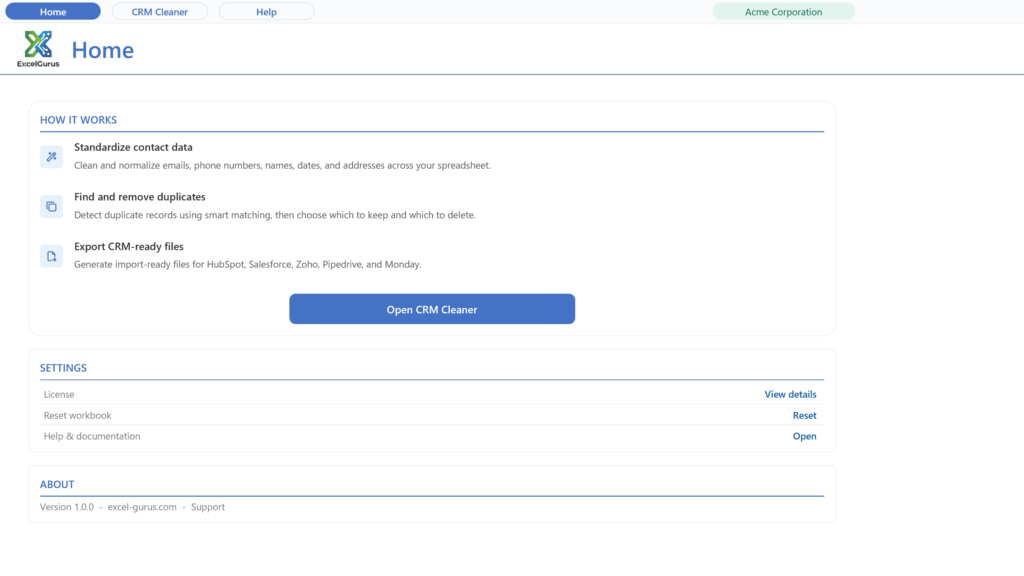
CRM Data Cleaner is data-cleaning software that runs inside Microsoft Excel on Windows. Before you upload a contact list into HubSpot, it cleans names, emails, phone numbers, addresses and dates, removes duplicate rows, and exports a HubSpot-ready file.
What the setup program does
CRM Data Cleaner is data-cleaning software that runs inside Microsoft Excel on Windows. It cleans names, emails, phone numbers, addresses and dates, removes duplicates, and exports a HubSpot-ready file. The free download (up to 100 records) is a setup program signed by ExcelGurus LLC. It installs as Excel Data Cleaner, the name you will see in Windows and in the folder below.
- Installs the workbook and its icon in Documents\ExcelGurus\Excel Data Cleaner (you can choose another folder), Start menu shortcuts, a desktop shortcut you can untick, and its uninstaller and settings in your Windows user profile. When it finishes it opens the workbook, unless you untick that box.
- Excel setting: a box, ticked by default, adds that folder and its subfolders to Excel’s Trusted Locations, so the workbook normally opens with no macro warning. Untick it and Setup leaves Excel as it is.
- No administrator rights. It installs for your Windows user only. Needs Windows 10 or later and Excel for Windows (not Mac).
- Internet: Setup itself sends nothing. The workbook shows the license agreement again the first time it opens; once you accept it there, it tells our server that a copy has been opened, then checks in normally once a day when it is opened. These messages carry the product, its version, whether a license is active and anonymous identifiers, including a random installation ID that Setup keeps in your Windows user profile. They never carry anything from your spreadsheets (what is sent, and what a paid license adds).
- Uninstall in Windows Settings > Apps > Installed apps (Apps & features on Windows 10 and early Windows 11): find Excel Data Cleaner and choose Uninstall. It removes the Excel setting, the shortcuts and its own settings, and asks whether to delete the folder; No, the default, keeps your files.
Setup shows the license agreement before it installs anything. License agreement (EULA) and terms · Privacy Policy · Full uninstall steps
Clean before the import
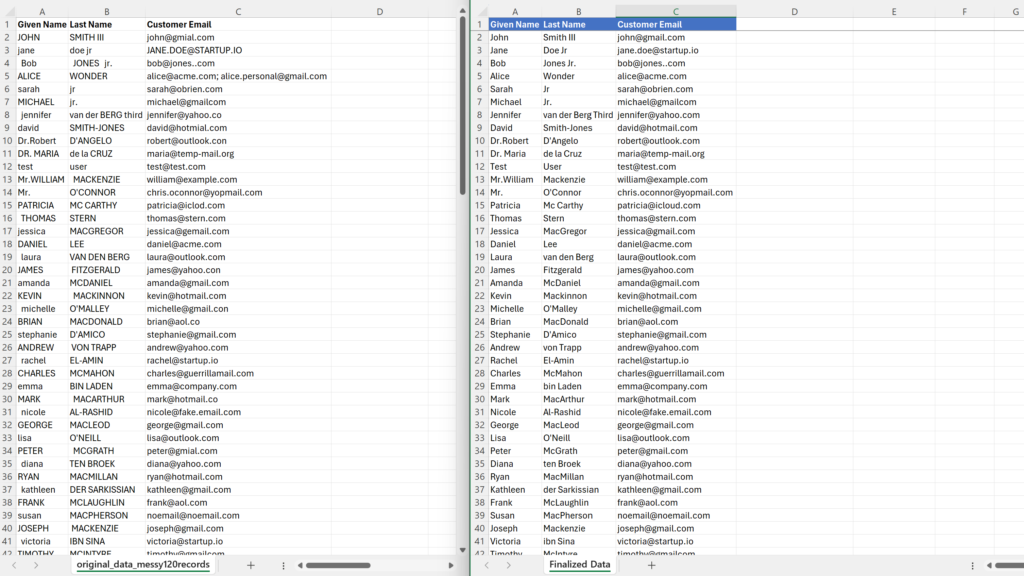
Standardize emails, phone numbers, names, dates, and addresses before they become part of your HubSpot CRM.
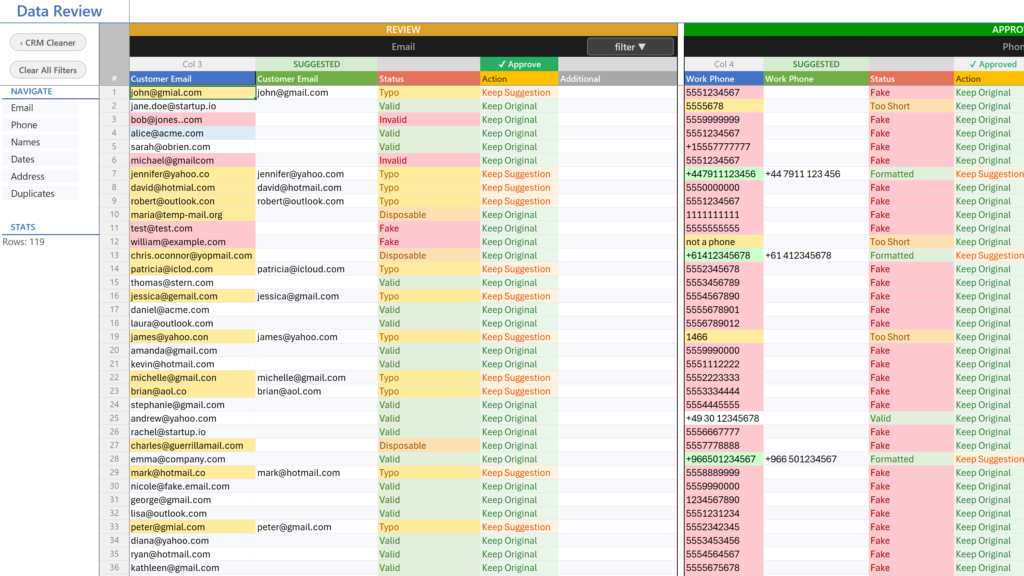
Review suggested fixes
The tool suggests corrections where possible, then lets you review the results instead of blindly changing your data.
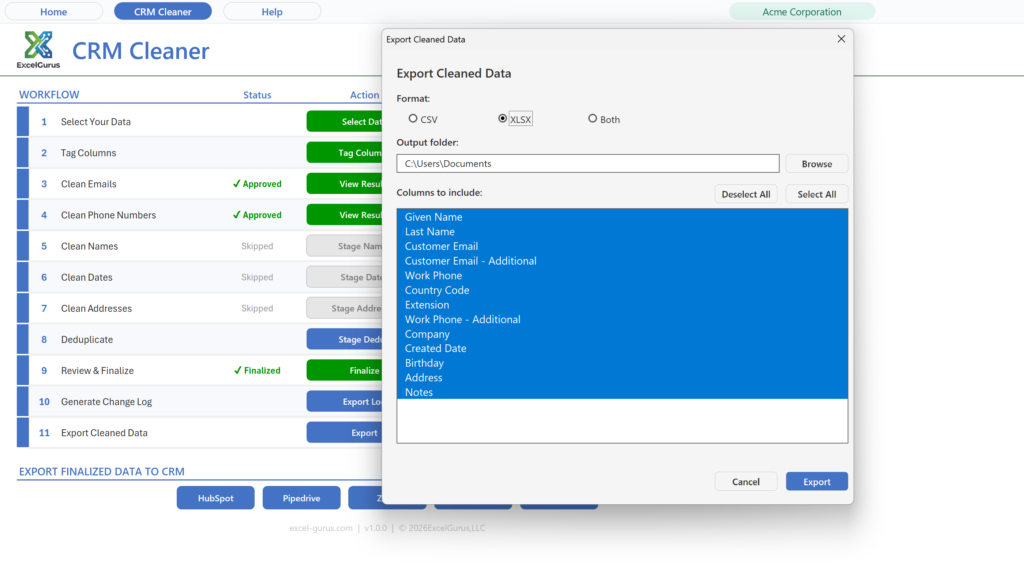
Export a HubSpot-ready file
After cleaning, export your data in a format that is easier to map during the HubSpot import process.
The HubSpot export, 1:18. Pick contacts or companies, look over the field mapping, and Export writes an import-ready file for HubSpot.
Watch it done, 2:15. The cleaned list imported into HubSpot, every column matched.
Why clean the spreadsheet before importing into HubSpot?
HubSpot imports work by uploading a spreadsheet and mapping your columns to HubSpot properties. If the spreadsheet already contains inconsistent emails, duplicate rows, mixed date formats, messy phone numbers, or combined address fields, those issues can follow the data into your CRM.
CRM Data Cleaner helps you clean the file first, then export a cleaner file that is easier to review and map during the HubSpot import process.
Email cleanup
Lowercase addresses, flag invalid emails, catch common domain typos, and separate extra email addresses for easier review.
Duplicate review
Find duplicate contacts before import by matching on email, phone, name, or any other column in your file.
Cleaner mapping
Prepare columns like first name, last name, phone, address, city, state, ZIP, and dates before uploading.
Open your current file
Start with your existing Excel or CSV contact list from an old CRM, spreadsheet, website form, or lead source.
Clean and review
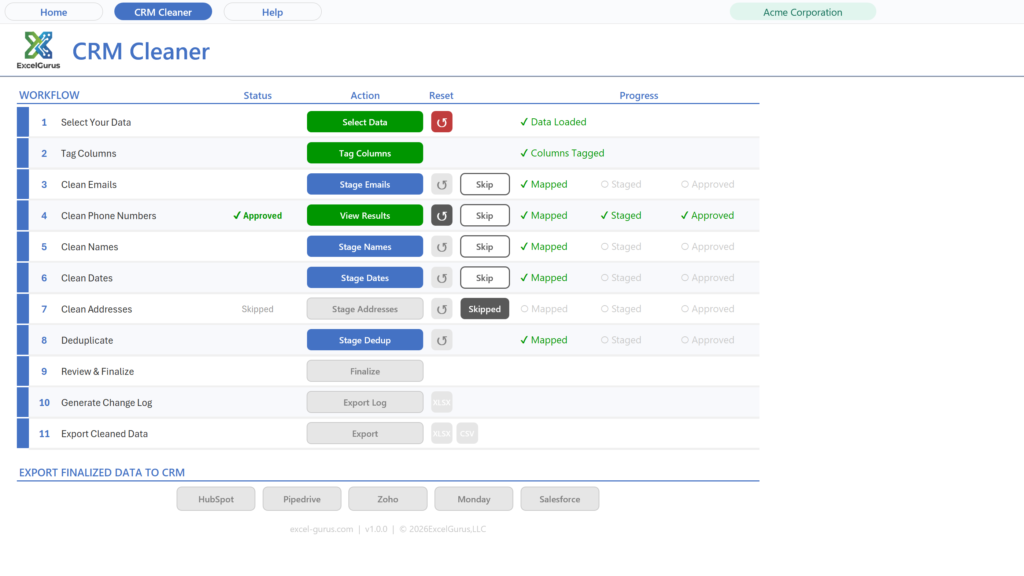
Run cleanup tools for emails, names, phones, addresses, dates, and duplicates. Review suggestions before exporting.
Export for HubSpot
Create a cleaner output file that is easier to upload and map in HubSpot’s import workflow.
HubSpot import prep checklist
- Make sure each contact has a clean primary email address where available.
- Separate multiple email addresses so you can decide how they should be mapped.
- Split full names into first and last name columns if needed.
- Standardize phone numbers before import.
- Split addresses into street, city, state, and ZIP/postal code columns when possible.
- Convert mixed date formats into one consistent format.
- Review duplicate contacts before uploading the file.
- Remove or fix obvious fake, test, or placeholder records.
Every version cleans
Click any type for the full detail. The tool auto-suggests fixes wherever it can, and you review and approve each one.
Emailscase, typos, validation, fakes▼
- Case & whitespace: lowercases and trims stray spaces.
- Typo correction: 59 common domain misspellings across Gmail, Yahoo, Outlook, Hotmail, AOL, and iCloud.
- Validation: flags malformed addresses (missing @, no domain, bad structure).
- Fake detection: catches placeholder junk like test@test.com, asdf@asdf.com.
- Disposable detection: flags throwaway inbox domains.
- Multiple emails: keeps the first, moves extras to their own column for review.
dg@gmial.com → dg@gmail.com (Typo)
sue@hotmial.com → sue@hotmail.com (Typo)
test@test.com → flagged Fake
bob@x.com; sue@y.com → bob@x.com + 1 more
Phone numbers10-country formatting▼
- Format styles: (555) 123-4567, 555-123-4567, 555.123.4567, or +15551234567.
- Default country: fallback for numbers with no prefix; a Country column takes priority if present.
- Country code column: optionally split the detected code into its own column.
5551234567 → 555.123.4567
5551234567 → +15551234567
+44 20 7946 0958 → CC: +44 | 020 7946 0958
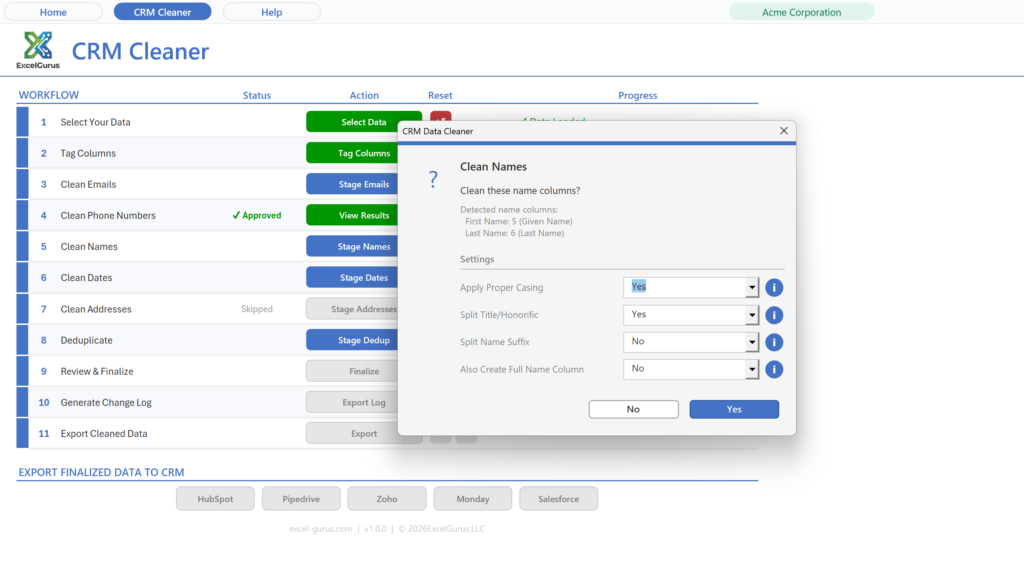
Namescase, split, merge, titles, suffixes▼
- Proper casing: fixes ALL CAPS or lowercase.
- Split full names: break “Dr. Jane Smith III” into Title / First / Last / Suffix columns.
- Merge: combine First + Last into one Full Name column when your destination needs it.
- Titles: Dr., Mr., Mrs., Ms., Miss, Prof., Rev., Hon., Sgt., Capt., and more.
- Suffixes: Jr., Sr., II, III, IV, Esq., PhD, MD, DDS, CPA, and more.
Dr. Jane Smith → Dr. | Jane | Smith
James Wilson III → James | Wilson | III
First: john + Last: SMITH → Full: John Smith
Datesauto-detect, reformat, time handling▼
- Auto-detection: reads mixed input formats automatically.
- Ambiguity resolution: set MDY / DMY / YMD so 03/04/2024 is never guessed wrong.
- Target formats: YYYY-MM-DD, MM/DD/YYYY, DD/MM/YYYY, MM-DD-YYYY, or “March 15, 2024”.
- Time handling: strip the time, move it to its own column, or keep it inline.
March 15, 2024 → 2024-03-15
15/03/2024 (DMY) → 2024-03-15
2024-03-15 14:30:00 → Date: 2024-03-15 | Time: 14:30:00
Addressesparse, split, multiple formats▼
- Output formats: separate Street/City/State/ZIP columns; Street + combined City-State-ZIP; a single full-address column; or normalize-only.
- Apt/unit splitting: pulls Apt, Unit, Suite, Ste, #, Bldg, Floor, Rm, Dept, and more into a separate column.
- ZIP handling: keep as 5-digit ZIP or preserve ZIP+4.
→ Street: 123 Main St Apt: 4B
→ City: Springfield State: IL
→ ZIP: 62704 (or 62704-1234)
or → single: 123 Main St Apt 4B, Springfield, IL 62704
Duplicatesfind & remove by any field▼
- Match on any column: email, phone, name, or any field in your data.
- Review groups: see matched records grouped together before anything is removed.
- Keep one, remove the rest: clear out the extras based on your chosen match column.
match on Phone → same number across rows grouped & deduped
Includes
- ✓ All cleaning tools
- ✓ HubSpot exporter included
- ✓ Find & remove dupes
Limited to 100 records.
Download freeA signed setup program for Windows; the workbook on its own is one click away on the next page. What setup installs and how to uninstall it are set out under the plans, with the license agreement.
Unlimited
- ✓ Email, phone, name, date, address cleaning
- ✓ Find & remove duplicates
- ✓ Export your cleaned data as Excel or CSV
Adds
- ✓ HubSpot-ready export file
- ✓ Cleaner mapping for contact imports
- ✓ Skip manual reformatting before upload
Adds
- ✓ Exporters for all 5 CRMs
- ✓ HubSpot, Salesforce, Zoho, Pipedrive, monday
Best value if you work with more than one CRM.
Buy $179What the setup program does
CRM Data Cleaner is data-cleaning software that runs inside Microsoft Excel on Windows. It cleans names, emails, phone numbers, addresses and dates, removes duplicates, and exports a HubSpot-ready file. The free download (up to 100 records) is a setup program signed by ExcelGurus LLC. It installs as Excel Data Cleaner, the name you will see in Windows and in the folder below.
- Installs the workbook and its icon in Documents\ExcelGurus\Excel Data Cleaner (you can choose another folder), Start menu shortcuts, a desktop shortcut you can untick, and its uninstaller and settings in your Windows user profile. When it finishes it opens the workbook, unless you untick that box.
- Excel setting: a box, ticked by default, adds that folder and its subfolders to Excel’s Trusted Locations, so the workbook normally opens with no macro warning. Untick it and Setup leaves Excel as it is.
- No administrator rights. It installs for your Windows user only. Needs Windows 10 or later and Excel for Windows (not Mac).
- Internet: Setup itself sends nothing. The workbook shows the license agreement again the first time it opens; once you accept it there, it tells our server that a copy has been opened, then checks in normally once a day when it is opened. These messages carry the product, its version, whether a license is active and anonymous identifiers, including a random installation ID that Setup keeps in your Windows user profile. They never carry anything from your spreadsheets (what is sent, and what a paid license adds).
- Uninstall in Windows Settings > Apps > Installed apps (Apps & features on Windows 10 and early Windows 11): find Excel Data Cleaner and choose Uninstall. It removes the Excel setting, the shortcuts and its own settings, and asks whether to delete the folder; No, the default, keeps your files.
Setup shows the license agreement before it installs anything. License agreement (EULA) and terms · Privacy Policy · Full uninstall steps
HubSpot import cleaner FAQ
Does this import directly into HubSpot?▼
Can I use the free version for a HubSpot import?▼
Will this remove all duplicate contacts automatically?▼
Does this replace HubSpot’s own duplicate tools?▼
What kinds of contact data can it clean?▼
Already own the CRM Data Cleaner? Add more exporters from inside the app.
HubSpot is a trademark of HubSpot, Inc. ExcelGurus is not affiliated with or endorsed by HubSpot.
Using a different CRM?
The same tool exports for all five. These guides cover what each importer expects.
See Excel Data Cleaner →