
Supplier invoices that arrive as PDFs can go into Excel without retyping: an Excel VBA developer builds a workbook that reads each week’s PDFs, adds one row per invoice line, and flags any invoice that doesn’t add up.
The issue
Every week we receive 40 to 60 invoices from about a dozen suppliers, all as PDFs. Someone on our team retypes each one into our purchases spreadsheet: supplier, invoice number, date and every line item. It takes most of a day, and typing mistakes only show up at month end, when our totals don’t match the suppliers’ statements.
We need the invoices read into the spreadsheet automatically, in the columns we already use.
How I’d build it
Yes, I can definitely automate this for you.
You’d save the week’s PDF invoices into one folder, open the workbook and click Import Invoices. The program reads each PDF and adds one row per invoice line to your sheet: supplier, invoice number, date, item, quantity, unit price and line total, in the columns you already use.
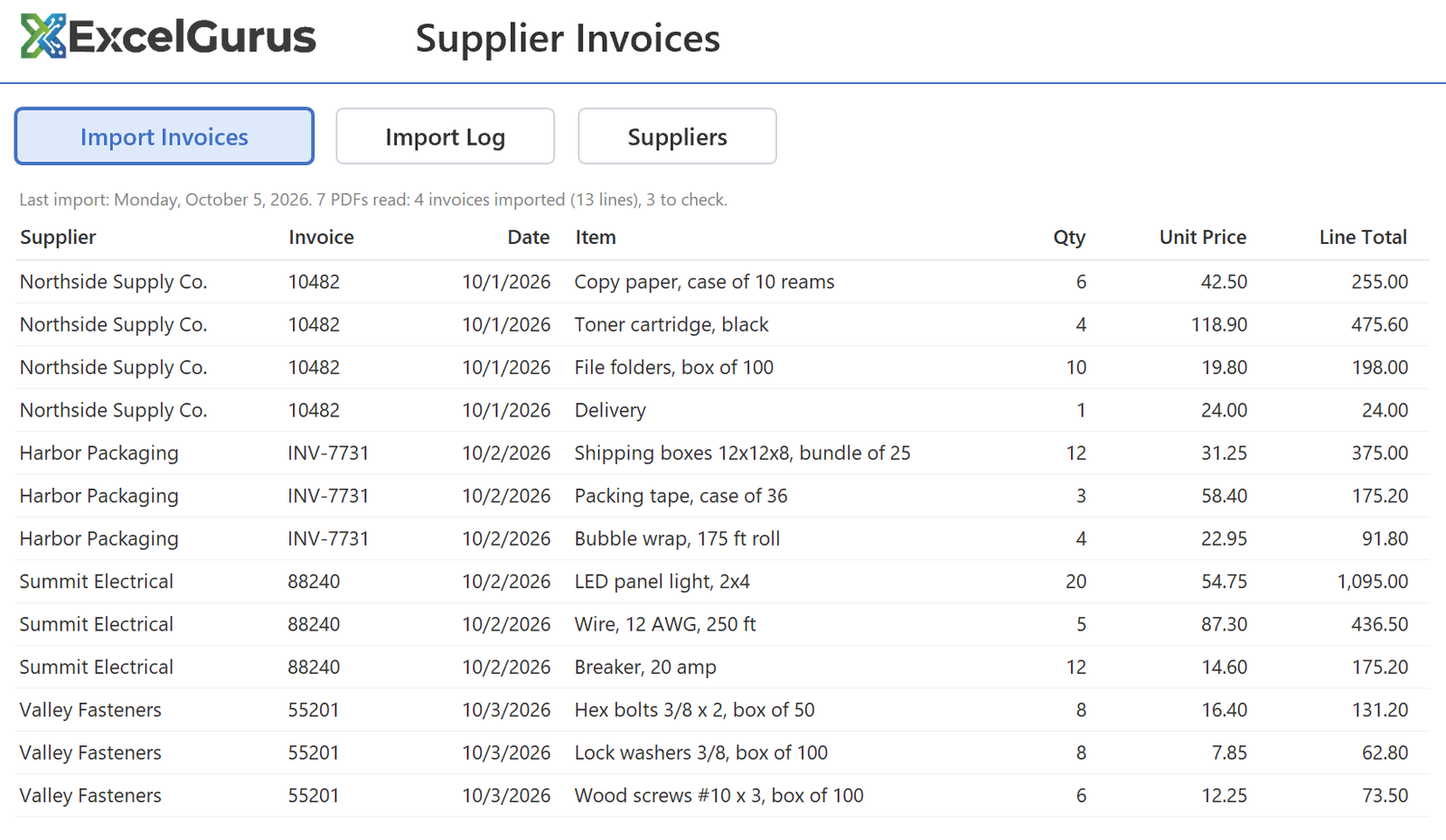
Each supplier lays out its invoices differently, so I set the program up for each of your suppliers’ layouts. When a new supplier starts sending invoices, adding its layout is a small addition, not a new program.
Before an invoice goes in, it is checked: its lines must add up to the invoice total, and the same invoice can’t go in twice. Every PDF is listed on the Import Log with what happened to it, and the ones that need a look come first, with the reason, so nothing goes in wrong without you seeing it.
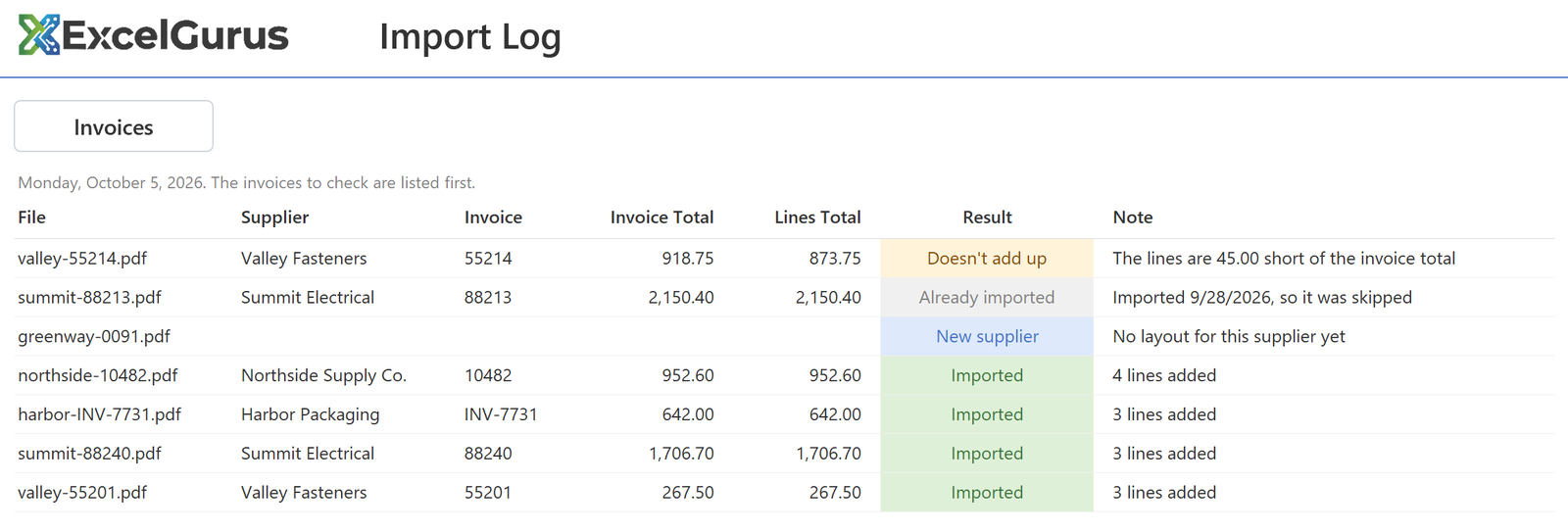
Once an invoice is in, its PDF moves to an Imported folder, so next week’s folder starts empty.
If some of your invoices are scanned paper rather than PDFs from the supplier’s system, mention it when you describe the job; scans need a different approach.
If you only need a batch of PDFs converted once, see our PDF to Excel conversion service.
To get started, describe your invoices below. Once I reply, you can send two or three sample PDFs and a copy of your spreadsheet (sample data is fine).
Every project gets a fixed-price quote before any work starts: the price you approve is the price you pay.