
EG TDR Reporter: help and setup guide
EG TDR Reporter is software that runs inside Microsoft Excel on Windows and prepares and checks the monthly GSA Sales Reporting (TDR) upload file. It imports your accounting export, checks every row against GSA’s published reporting rules, and fills the template you download from the FAS Sales Reporting Portal (SRP). You upload the file in SRP and pay the Industrial Funding Fee (IFF) yourself. This guide covers setup, each month’s report, every check and what to do about it, the free month and your license.
EG TDR Reporter is made by ExcelGurus, LLC. ExcelGurus is not affiliated with, endorsed by, or acting for the U.S. General Services Administration (GSA).
Jump to a section
Getting started
- If you used the setup program, the workbook is in Documents\ExcelGurus\EG TDR Reporter, unless you chose another folder, and Setup opens it when it finishes. Open it again from its Start menu shortcut, or from the desktop shortcut if you kept it.
- Setup’s box for Excel’s Trusted Locations is ticked by default, so the workbook normally opens with no macro warning. If you unticked it, or downloaded the workbook on its own, Excel asks about macros: allow its macros (are Excel macros safe?).
- Downloaded the workbook on its own? Nothing is installed and no Windows setting is changed: save it in a folder you back up and open it in Excel for Windows.
- The first time it opens, the workbook shows the license agreement. Once you accept it there, it tells our server that a copy has been opened, then checks in once a day when it is opened (what is sent).
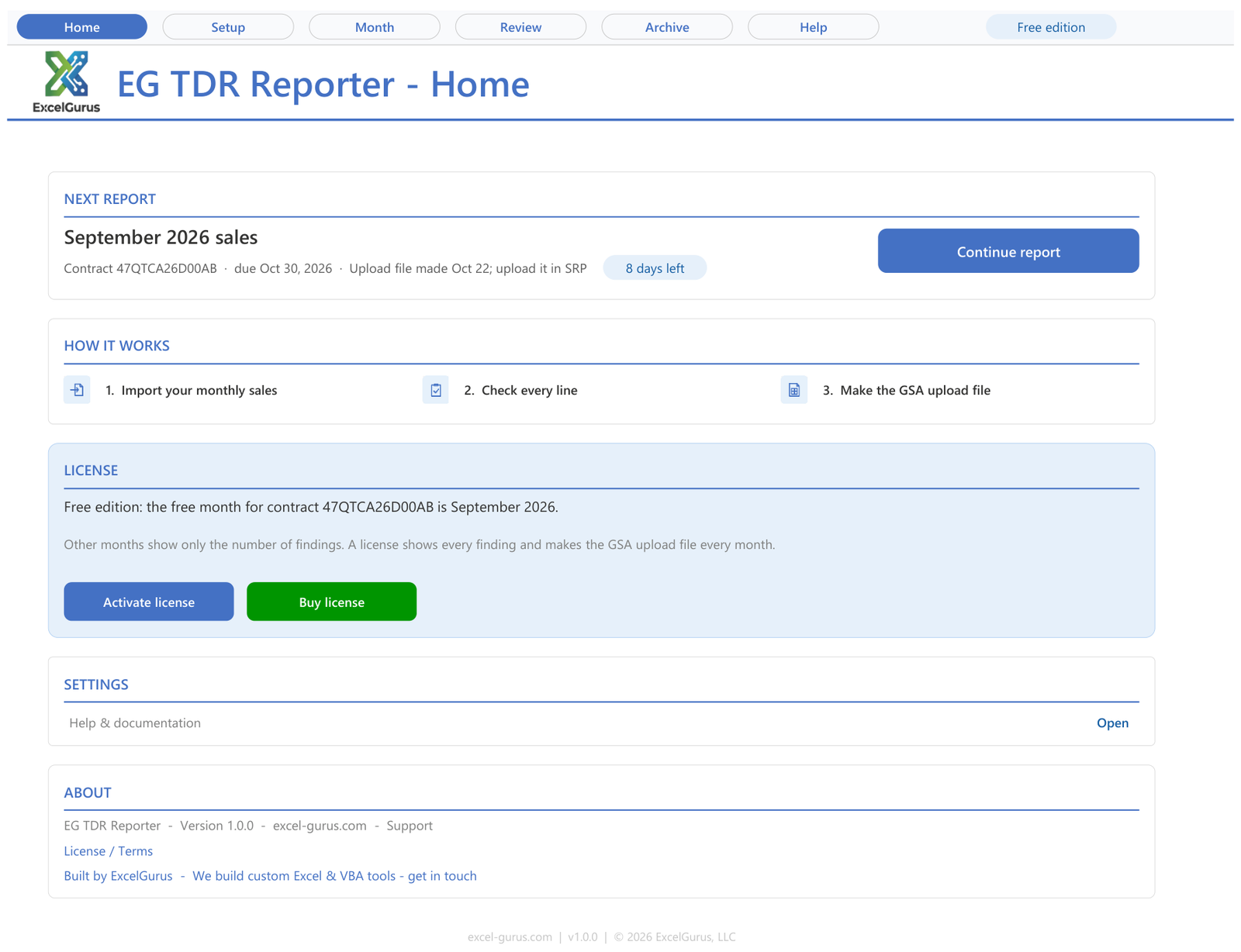
- The tabs across the top are Home, Setup, Month, Review, Archive and Help. The pill at the top right shows your edition or license and opens the license box.
Home
The Next report card names the month, for example September 2026 sales, with the contract, the due date and the days left: in amber when it is a week away and in red when it is late. Its button (Start report, Open report or Continue report) opens that month.
With no contract yet, the card reads No contract set up yet, and Set up a contract opens Setup.
The License card says which edition this copy is. In the free edition it offers Activate license and Buy license. With a license, the first button reads License details; when a license has ended, the second reads Renew.
Setup
One Setup page holds what every month reads. One company per workbook, one or more MAS contracts. Every entry is checked as you type it, and a refused entry says why.
| Section | What goes in it |
|---|---|
| COMPANY | Your company as GSA knows it. The reporting basis is how you report every month, by invoice date or by payment date; GSA asks you never to switch. |
| CONTRACTS | One row per GSA MAS contract. The first TDR month is the month the contract came under TDR. If you already reported some months in SRP yourself, put the first month you have not reported under First month in this tool. |
| AWARDED SINS | The SINs awarded on each contract (GSA eLibrary lists them). |
| PRICE LIST | Your awarded services, each title exactly as on your GSA price list, with its type, unit, UCID and the price in effect today, IFF included: typed, pasted, or imported from a file, GSA’s FCP Services Plus File included. |
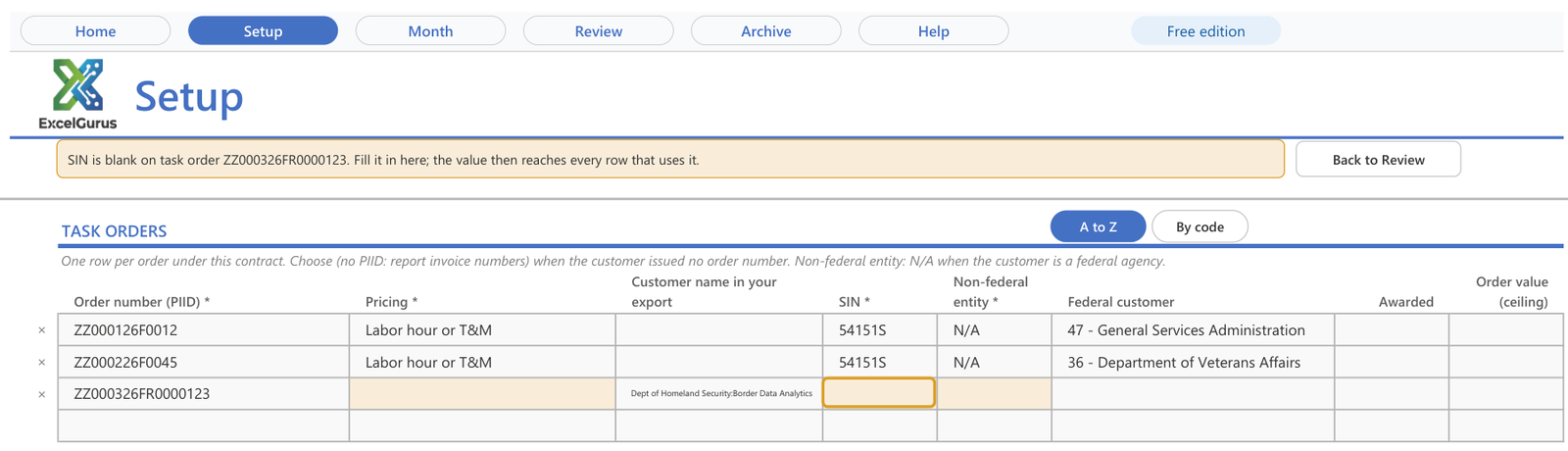
| TASK ORDERS | One row per order under the contract: the order number (PIID), pricing, SIN, non-federal entity and federal customer, picked by agency name (the GSA file gets only its two-character code). Choose (no PIID: report invoice numbers) when the customer issued no order number. Non-federal entity: N/A when the customer is a federal agency. |
| LABOR CATEGORY NAMES | The names your accounting export uses, and the GSA labor category each one means. Answers given on Import appear here. A change applies to rows imported after it; import a month again to apply it there. |
| IMPORT SOURCES | Saved column layouts for your exports. Delete one to map that export again next time. |
Each month
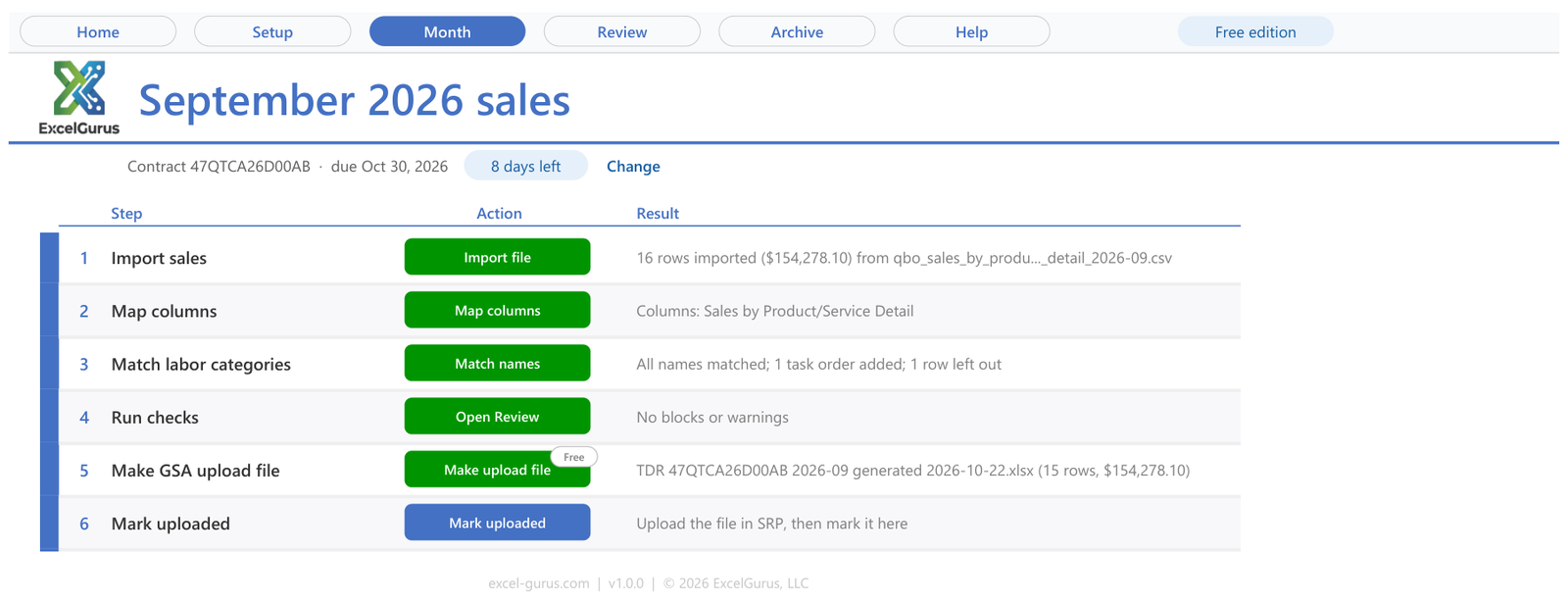
The Month page is the month itself, for example September 2026 sales, with the contract and the due date under its title. It has six steps, in order, and each shows its result in real numbers.
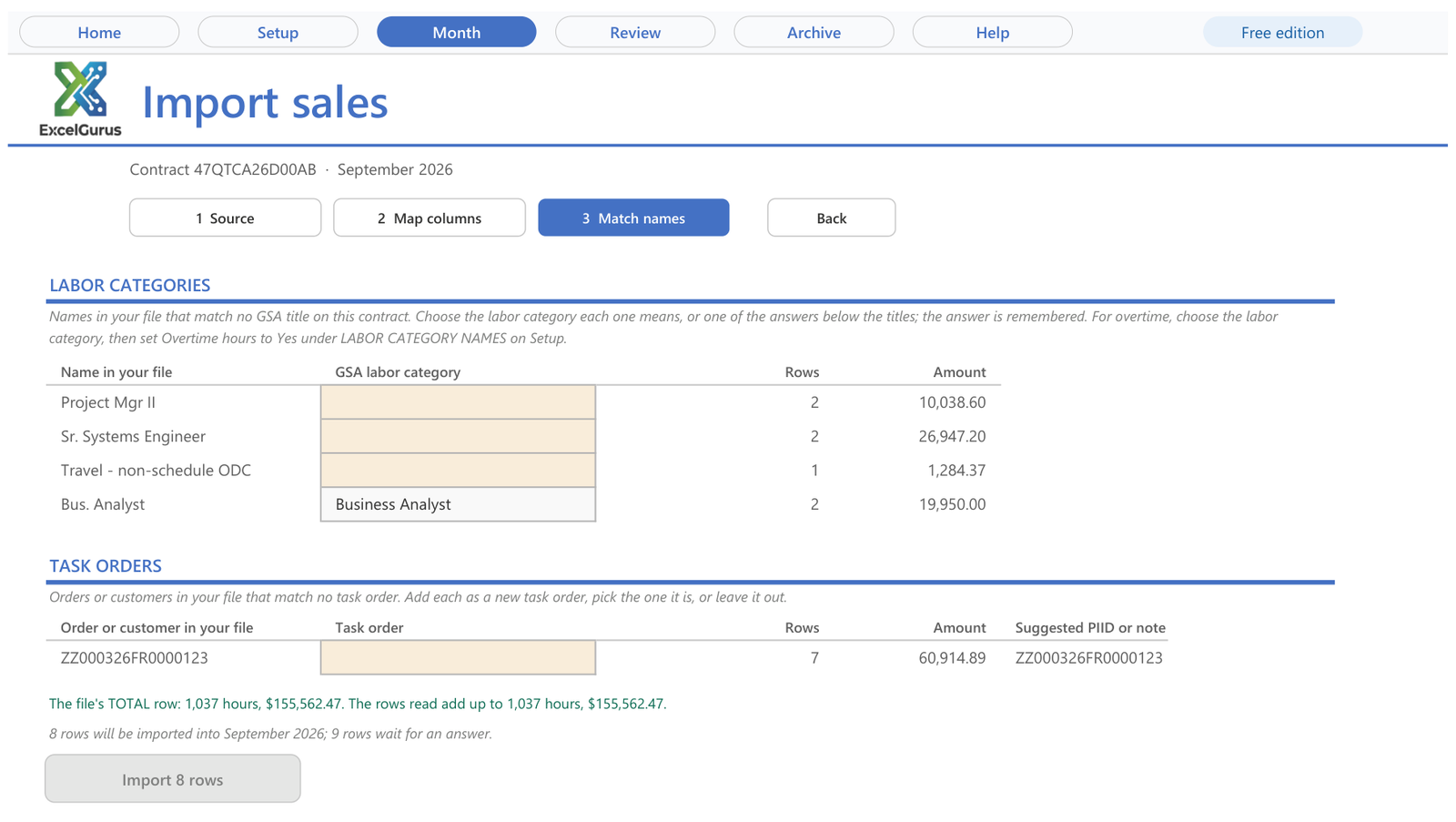
- Import sales. Open the CSV or Excel export from your accounting system, or paste the rows. Title rows, subtotals and the grand total are skipped, and the rows read are checked against the file’s own total.
- Map columns. The columns are found by their headings (invoice number, date, order, labor category, hours, rate, amount) and the layout is saved under a name, so next month’s file from the same report skips this step.
- Match labor categories. For a name your books use that is not on your GSA price list, you are asked once which GSA labor category it is, and the answer is remembered. A line that is not on your price list, travel for example, can be left out.
- Run checks. Every row is checked before a file exists. The results are on Review.
- Make GSA upload file. You pick the template you downloaded from SRP this month. The rows are written as values into a copy of it, read back, and saved as a new file; your template itself is never changed.
- Mark uploaded. Once SRP shows your upload as submitted, one click records it, and the next month opens.
A month with no sales
A month with no sales is recorded with one click on its No sales link (No sales in September, for September), and you report it by Form Entry in SRP; no file is made.
Review
Every row is checked before a file exists. Two kinds of finding. Blocks stop the file until they are fixed: SRP documents a rejection for some, GSA’s pages fix the value others take, and a few are EG TDR Reporter’s own checks. Warnings do not stop the file, but GSA may flag the row later.
Each finding names the row (the row of your export, or the Setup record behind it), the field, what SRP expects and where the rule comes from. Make GSA upload file stays locked while a Block stands or a price above your GSA price waits for its tick; click it and it says why.
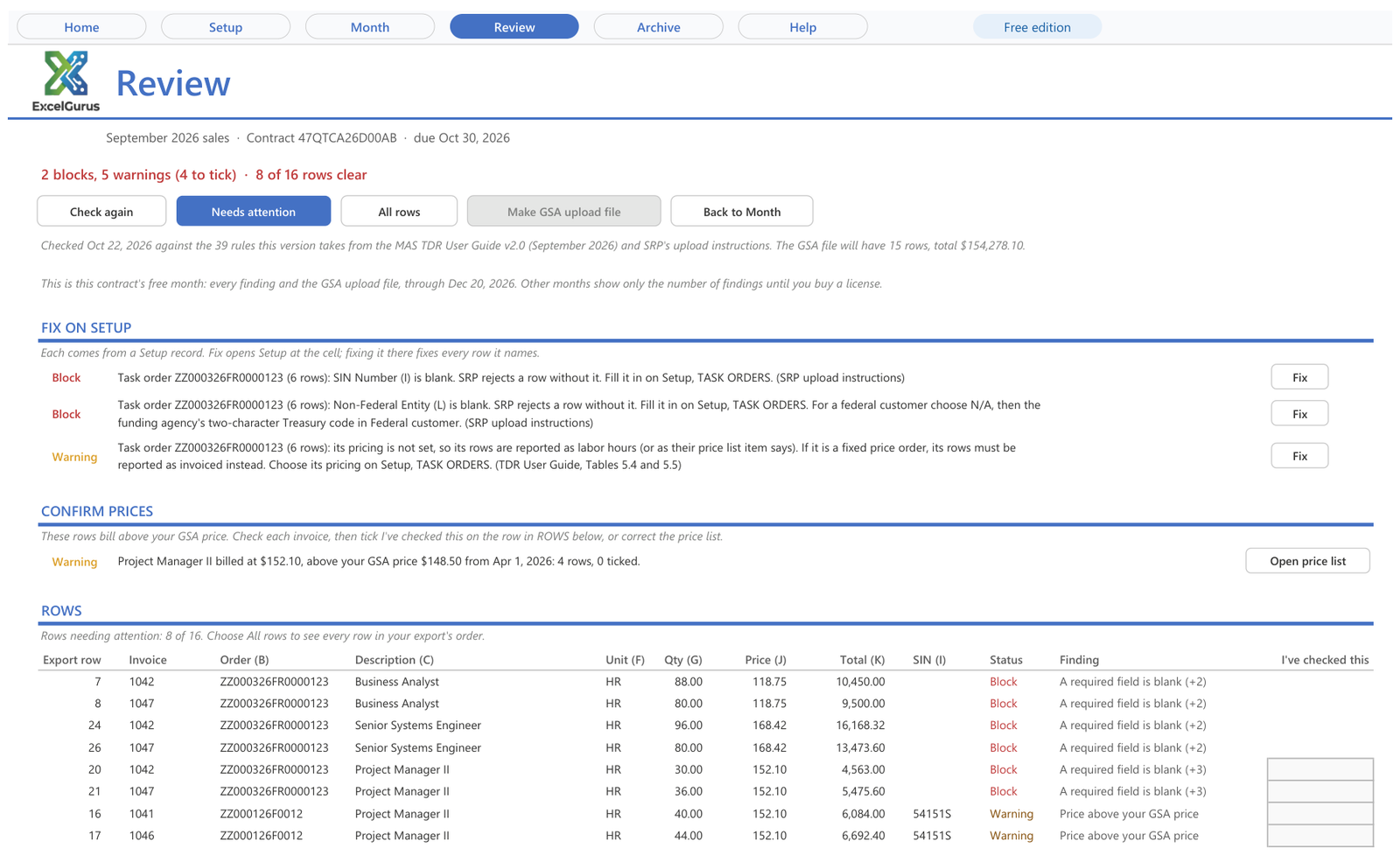
In version 1.0.0 the findings are grouped in up to six sections, in this order. A section with nothing in it is not shown; ROWS always is.
| Section | What it holds |
|---|---|
| FIX ON SETUP | Each comes from a Setup record. Fix opens Setup at the cell; fixing it there fixes every row it names. |
| CONFIRM PRICES | These rows bill above your GSA price. Check each invoice, then tick I’ve checked this on the row in ROWS below, or correct the price list. |
| FIX IN YOUR EXPORT | These come from rows of your accounting export. Correct them there and import the month again. |
| MONTH | Findings about the month as a whole: earlier months, zero sales and corrections. |
| OTHER FINDINGS | Read each before you upload; most need nothing unless the finding says so. |
| ROWS | The rows of your export with their status and finding, and the I’ve checked this column. Needs attention lists the rows that need you; All rows shows every row in your export’s order. |
When no check finds anything, Review says so:
“None of this version’s checks found a problem. SRP checks the file again when you upload it.”
Fix
Fix opens Setup at the cell for a finding that comes from a Setup record, and fixing it there fixes every row it names. Back to Review takes you back.
Prices above your GSA price
Prices above your GSA price wait for you. A row billed above the awarded price in effect on its date needs a tick on “I’ve checked this” before the file is made: check the invoice, or correct the price list.
What each finding means
Version 1.0.0 has 39 checks: 21 Blocks and 18 Warnings. The table gives each one by the name Review shows, what to do in the workbook’s own words, and where the rule comes from. Where a check is EG TDR Reporter’s own, with no GSA page behind it, the last column says so. Price above your GSA price is a Warning, but the file waits until each of its rows is ticked.
| Finding | Block or Warning | What to do | Where it comes from |
|---|---|---|---|
| A required field is blank | Block | Fill in the field the finding names. A value from Setup is filled in once there and reaches every row; an amount comes from your export. | SRP upload instructions; TDR User Guide, Tables 5.4 and 5.5 |
| Contract number SRP does not take | Block | Type the MAS contract number exactly as on your award, without dashes: it begins 47 or GS. | SRP upload instructions; TDR User Guide, Table 4.1 |
| Unit not on SRP’s list | Block | Choose the unit from the list on Setup; SRP takes only the codes of its Table 1, in their exact case. | SRP upload instructions, Table 1 |
| EA on hourly labor | Block | Report hourly labor in HR (or the unit on your Price Proposal Template), and overtime in OT. | TDR User Guide, Table 5.5 |
| Unit does not fit the row | Block | Returns go in RTN and discounts in VD or PPD; a sale never uses those units. | TDR User Guide, Table 5.7 and Appendix 3 |
| Total is not quantity x price | Block | Correct the hours, the rate or the amount in your accounting system so that hours x rate, rounded to cents, is the amount; then import the month again. | SRP upload instructions, Total Price Paid |
| Non-federal entity code SRP does not take | Block | Choose N/A for a federal customer, or SCP, SDP or OTH for the others. | SRP Table 2; TDR User Guide, Table 5.5 |
| Federal customer code missing | Block | Choose the two-character Treasury code of the agency that funded the order. | TDR User Guide, Table 4.1 |
| Federal customer code SRP does not take | Block | Choose the funding agency’s code from the list, or set the customer’s non-federal entity. | TDR User Guide, Table 4.1; SRP Table 3 |
| Cloud service type | Block | On a cloud SIN choose IaaS, PaaS, SaaS or LCAT; on any other SIN leave the cloud type blank. | SRP upload instructions; TDR User Guide, Tables 5.2 to 5.7 |
| A sign SRP does not take | Block | Check the row in your export: only returns and discounts carry negative hours and amounts. | TDR User Guide, Appendix 3 and Table 5.7 |
| Discount without a sale | Block | Report the discount in the month of its sale, or take it into the sale’s price. | EG TDR Reporter’s own check |
| Too long, or characters SRP does not take | Block | Shorten the value, or remove the characters SRP does not take. | SRP Report Data by File Upload; SRP upload instructions |
| Row the import could not read | Block | Correct the cell in your export and import the month again. | EG TDR Reporter’s own check |
| Row without its task order or labor category | Block | Import the month again, so the Match names step asks for the missing answer. | EG TDR Reporter’s own check |
| Answers changed: import again | Block | Import the month again, so its rows follow today’s answers. | EG TDR Reporter’s own check |
| Product columns filled on a services row | Block | Leave the product columns empty on services rows. | SRP upload instructions |
| Earlier month not reported | Block | If you reported the earlier months in SRP yourself, set First month in this tool on Setup, CONTRACTS, to the first month you report here. Otherwise make the earliest month’s file first, or, if it had no sales, mark it zero sales on Month. | SRP Report Data by File Upload |
| Contracts of different months in one file | Block | Make one file per month. | SRP Report Data by File Upload |
| No sales to report | Block | Report zero sales in SRP by Form Entry, then mark the month zero sales on Month. | SRP Data Reporting Options |
| Month before the contract’s TDR start | Block | Check the contract’s first TDR month on Setup. | GSA Multiple Award Schedule (MAS) Modification Guide |
| Price above your GSA price | Warning. The file waits until you tick I’ve checked this on each of its rows. | Check the invoice. If the price is right (an approved increase not yet on Setup, for example), tick I’ve checked this on the row; otherwise correct the invoice or the price list. | Your GSA price list |
| Order number is a contract number | Warning | Type the agency’s order number (PIID) for this task order. | TDR User Guide, Table 4.1 |
| SIN not awarded on the contract | Warning | Choose the SIN awarded for this order, or add the SIN under AWARDED SINS if GSA awarded it. | TDR User Guide, Table 5.5 |
| Title differs from the GSA price list | Warning | Use the title exactly as on your GSA price list, or add the item’s UCID. | TDR User Guide, Table 5.5 |
| SCLS description incomplete | Warning | Add the wage determination and its revision to the task order. | TDR User Guide, Table 5.5 |
| SCLS punctuation | Warning | Write the description as LCN:<title>, WD:<number>, REV:<revision>. | TDR User Guide, Table 5.5; SRP upload instructions |
| N/A as the description | Warning | Write the labor category title in the description. | TDR User Guide, Table 5.5 |
| UCID missing | Warning | Add the UCID from your FCP catalog to the item. | TDR User Guide; SRP upload instructions |
| Return without a sale this month | Warning | If the sale was reported in an earlier month, nothing is needed; otherwise check the credit. | EG TDR Reporter’s own check; the return row: TDR User Guide, Appendix 3 |
| Supporting documents for a large order | Warning | Upload the government’s PWS, SOO or SOW once in SRP; if it is already there, nothing is needed. | TDR User Guide, Table 5.4 |
| Line imported twice? | Warning | If both lines are real, nothing is needed; otherwise correct the export and import again. | EG TDR Reporter’s own check |
| Dated outside the month | Warning | Import the month again; rows dated in other months are left out. | TDR User Guide, section 2.2 |
| More than two decimals | Warning | Check that the row’s total still matches; correct the export if it should. | SRP upload instructions |
| Zero quantity or total | Warning | Leave it if it is right, or correct the export. | EG TDR Reporter’s own check |
| Earlier month not marked uploaded | Warning | Upload the earlier month’s file in SRP, then mark it uploaded on Month. | SRP Report Data by File Upload |
| Month already reported: a correction | Warning | Upload this file through Adjust Data, File Upload, with a justification (for a month reported as zero sales, set Zero sales to No there). | SRP Adjust Data by File Upload |
| Month totals zero or less | Warning | Check the month’s returns and sales; if SRP refuses the file, ask GSA’s TDR team. | TDR User Guide, Appendix 3 |
| Task order pricing not set | Warning | Choose the task order’s pricing on Setup, TASK ORDERS: Labor hour or T&M, Fixed price (order level), or Configurable or miscellaneous. | TDR User Guide, Tables 5.4 and 5.5 |
The GSA upload file
The file is GSA’s own template, the copy you downloaded from SRP this month, filled on its MAS Data sheet. Choose it as you downloaded it, an .xlsx file.
- Values only. No formulas, macros, tabs or format changes go into it, and the rows written are read back and compared before the file is saved.
- A new file every time, named for the contract, the month and the day it was made, saved in the folder you choose and never over an existing file.
- Nothing personal in it. The file names neither your Windows user name nor any folder of yours.
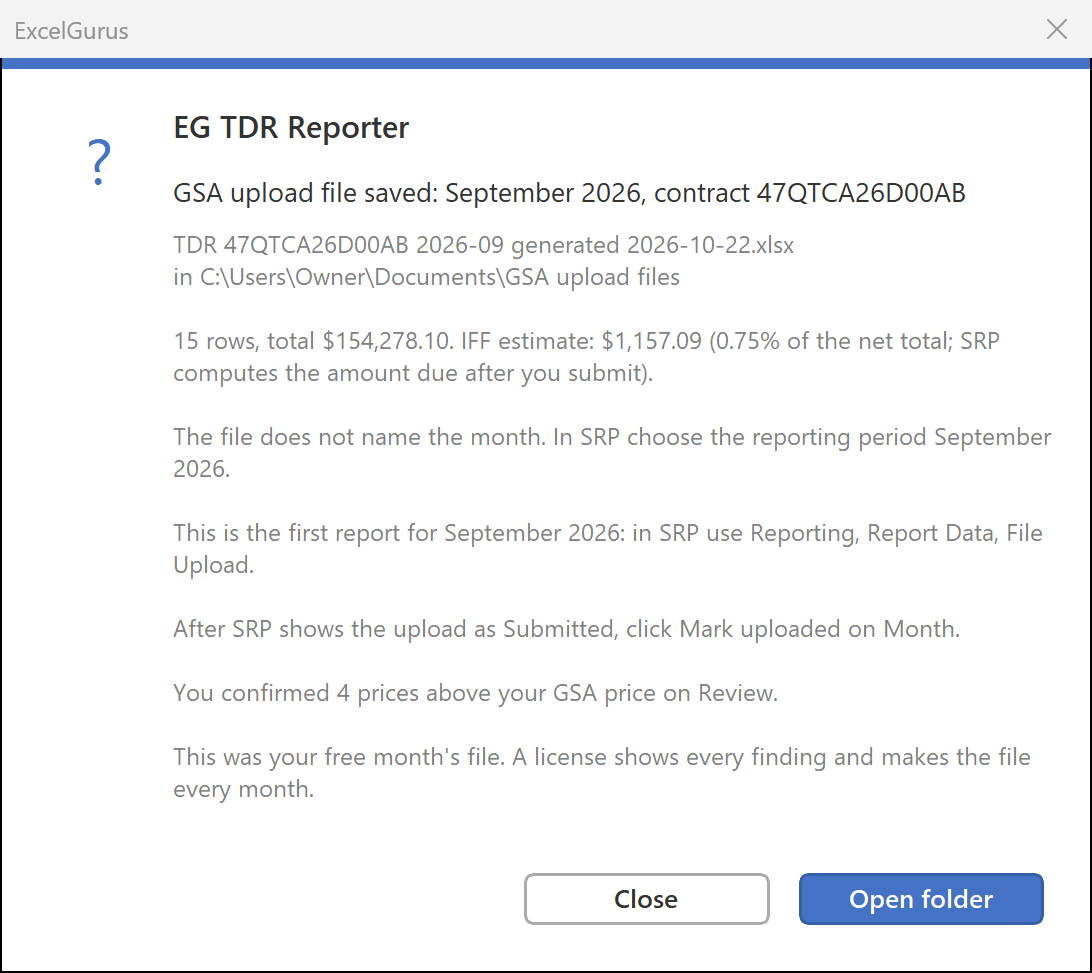
The message after it gives the file’s name and folder, its rows, its total and an IFF estimate (0.75% of the net total; SRP computes the amount due after you submit), and then the steps in SRP:
- The file does not name the month. In SRP choose the reporting period, for example September 2026.
- For a first report: in SRP use Report Data, File Upload.
- For a month already marked uploaded, the file is a correction: in SRP use Adjust Data, File Upload, choose the contract and the month, and enter a justification. The file replaces everything SRP holds for that month. For a month reported as zero sales, also set Zero sales to No.
- After SRP shows the upload as Submitted, or Resubmitted for a correction, click Mark uploaded on Month.
The Archive
The Archive keeps each file made, and each month marked zero sales, with its status and an estimate of the IFF (0.75% of the net total; SRP calculates the amount due).

The free month and the free edition
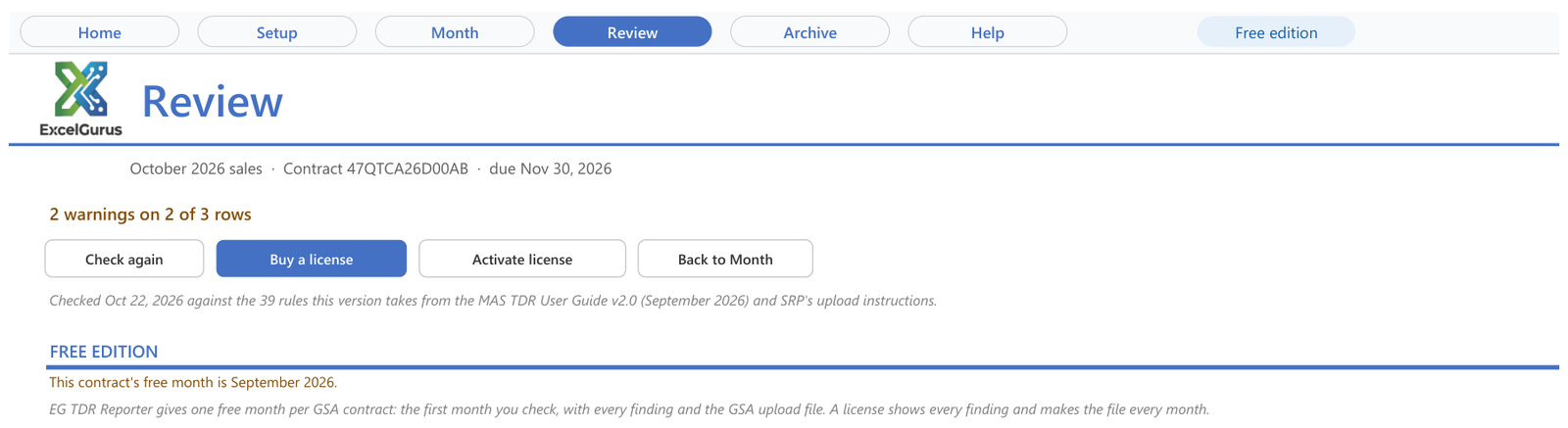
Each GSA contract gets one free month: the first month you check, with every finding and the GSA upload file. After it, the free edition still imports and checks your sales but shows only the number of findings, for example “2 blocks and 1 warning on 3 of 15 rows”, and makes no GSA upload file. A license shows every finding and makes the file every month.
At your first check of a month with sales, the workbook asks whether to start your free month with that month:
“Start your free month with September 2026?”
Starting it sends the contract number and the month to our server, which keeps one free month per contract; choose Not now to see only the number of findings for now. Review then offers Start free month when you are ready. It takes no card, and nothing is charged when it ends.
- The free month starts only once the workbook reaches our server.
- That month is shown in full for 60 days from the day it starts; after that it shows only the number of findings, like every other month.
- A new download or a reinstall does not start another free month for the same contract, and free months are limited to three contracts per computer in any 12 months.
- The workbook records the free month in itself, so it must be a saved copy it can write to. A copy never saved, opened from a temporary folder or opened read-only says so: use File > Save As to save it in your Documents folder, then choose Check again.
What the free month sends, and what we keep: the free month in the Privacy Policy.
Your license
A license shows every finding and makes the GSA upload file every month. It covers 2 computers and unlocks the copy you already have: your contracts, price list, months and files stay where they are.
Activating your license
- On Home, in the License card, click Activate license.
- Enter the license key and email from your purchase confirmation, then click Activate.
Moving to another computer
Open the license box from the pill at the top right, choose Deactivate, then activate on the next computer. The license box also shows who the license is for, the date it is good through, the key and this computer, with Refresh to check it online now.
Renewal and canceling
A license bought online renews automatically each year, on the renewal date shown in your license email, until you cancel. We email you 35 days and again 20 days before each renewal, with the date, the amount and how to cancel. Your license is good through 14 days after each renewal date, so a renewal charge that needs another try is made while the license is still good.
To see or cancel automatic renewal, or to change the card, choose Manage renewal in the license box. You can also cancel from the link in your license email or in any renewal email, or at excel-gurus.com/tdr-reporter/renew.php with your license key and the email address your license is registered to. When you cancel, you are not charged again, and your license stays good through the date it already has.
If a renewal charge fails, we email you and try the charge again over the following days. You can update the card, or pay the renewal, on that same page or from the link in that email. If the charge still cannot be collected, automatic renewal stops and the license ends on its good-through date.
A license invoiced on request is for one year and does not renew automatically. To renew it, ask at excel-gurus.com/support before it ends.
When a license ends
EG TDR Reporter continues as the free edition: it still imports and checks your sales but shows only the number of findings, and makes no GSA upload file. Your data and past files stay yours. The License card then offers Renew. A license that ended can be started again online: within 60 days of its end at the price it had, and later at the price of the day.
Refunds
Ask within 30 days of a purchase, or within 60 days of a renewal charge, and we refund it if no GSA upload file has been made with your license since that charge (your free month’s file does not count). If SRP rejected a file because of a problem in EG TDR Reporter, ask anyway. Request a refund at excel-gurus.com/support.
The automatic renewal terms set all of this out in full.
I’ve lost my license key
Use Find my license key: enter the email address you used to buy and the receipt number from your Stripe receipt, and your key shows there.
Working offline
The workbook checks in with our server once a day when it is opened. If your license has not been checked online for more than 30 days, it is not in force on that computer until it has been: connect to the internet and choose Refresh in the license box, or reopen the workbook.
Troubleshooting
Each message below is the workbook’s own; the words in angle brackets stand for what it fills in.
The buttons do nothing
Macros are not enabled for this copy. See how to enable macros.
“Your license has not been checked online for more than 30 days. Connect to the internet and choose Refresh in the license window, or reopen the workbook.”
Do what it says; once the license has been checked online, it is in force again.
“This license is registered to another computer. Deactivate it there, then activate it here with your key, or contact support at excel-gurus.com/support.”
Deactivate it on the other computer from the license box, or contact support if you no longer have that computer.
“Your license is already activated on the maximum number of machines. Deactivate another machine first, or contact support.”
A license covers 2 computers. Deactivate it on one you no longer use, or contact support.
“The email doesn’t match this license. Use the email you bought the license with.”
“Please check your license key and email for typos.”
Use the key and the email from your purchase confirmation. Lost it? Find my license key.
“Your license is no longer active on this computer. If you believe this is a mistake, contact support at excel-gurus.com/support.”
“Your free month starts when this computer can reach excel-gurus.com.”
Connect to the internet, then choose Check again on Review.
“This computer has already used the free month for 3 GSA contracts in the last 12 months.”
Free months are limited to three contracts per computer in any 12 months. A license shows every finding and makes the file every month.
“This copy is in a temporary folder, as when a file is opened straight from an email or a zip file. Use File > Save As to save it in your Documents folder, then choose Check again.”
Do what it says. The same steps cure a copy that has not been saved yet, or one that is read-only.
“Choose the template as you downloaded it from SRP: an .xlsx file.”
“This is a file EG TDR Reporter made, not the blank GSA template. Download this month’s template from SRP and choose it.”
“MAS Data already holds rows. Choose the blank template you downloaded from SRP this month.”
“The file has no MAS Data sheet. Download this month’s template from SRP (FAS SRP Excel Template on srp.fas.gsa.gov) and choose that file.”
“The GSA template has two columns named <column>. Download a fresh copy from SRP.”
Each of these wants the blank template, as you downloaded it from SRP this month. Download it again and choose that file.
“The GSA template is open in Excel. Close it, then make the file again.”
Close the template in Excel, then click Make GSA upload file again.
“EG TDR Reporter needs an update for this template (check excel-gurus.com); nothing was saved.”
“GSA has changed the template: it has a required column this version does not know (<column>). Nothing was saved. Check excel-gurus.com for an update of EG TDR Reporter.”
Nothing was saved. Contact support, say which message you saw, and give the version shown in Home’s About section.
Versions and updates
This guide is for EG TDR Reporter 1.0.0, whose checks follow the MAS TDR User Guide v2.0 (September 2026) and SRP’s upload instructions. Home’s About section shows the version of your copy.
Each month you pick the template you downloaded from SRP, and the tool finds its columns by their headings. If a column this version needs is missing, or a new column is marked as required, it stops and tells you instead of making the file. A new column that is not marked as required is named, and you decide.
If the workbook asks you to check excel-gurus.com for an update, contact support.
Uninstalling EG TDR Reporter
To remove it: Installed apps in Windows Settings (Apps & features on Windows 10 and early Windows 11), or Uninstall in the ExcelGurus Start menu folder. That takes the folder back out of Excel’s Trusted Locations and asks whether to delete EG TDR Reporter and your report data; No, the default, keeps them.
- Close the workbook in Excel.
- Open Windows Settings, then Apps, then Installed apps (on Windows 10 and early Windows 11: Apps & features). Find EG TDR Reporter and choose Uninstall. Or open the ExcelGurus folder in the Start menu and click Uninstall EG TDR Reporter.
- The uninstaller asks “Remove EG TDR Reporter from this computer?” Click Yes.
- It then asks “Delete EG TDR Reporter and your report data?” No, the default, keeps your files and removes only the shortcuts and settings. Yes deletes the install folder and everything in it.
Uninstalling removes only what the setup program added: the Excel Trusted Location for the folder, if its box was ticked; the Start menu and desktop shortcuts and the entry in Installed apps; and its settings in the Windows registry. Uninstalling one ExcelGurus product leaves the others as they are.
If you downloaded only the workbook file, nothing was installed: delete the file when you no longer need it.