
An Excel VBA program can check the due dates in your workbook every day, prepare the reminder emails in Outlook with each person’s details filled in, and keep a record of what went out.
The issue
We keep our customers’ service due dates in an Excel workbook, a few hundred rows: inspections, renewals, annual visits. Every morning someone opens the file, scans the dates and writes the reminder emails by hand. Some are missed, some go out twice, and afterward nobody can say who was reminded and when.
We’d like Excel to find the rows that are coming due or overdue and prepare the emails for us, with the right name, date and details in each one, and keep a record of what was sent.
How I’d build it
Yes, I can definitely automate this for you.
It would be an Excel VBA program inside your workbook. You keep entering dates the way you do now, and when you’re ready you click Send Reminders.
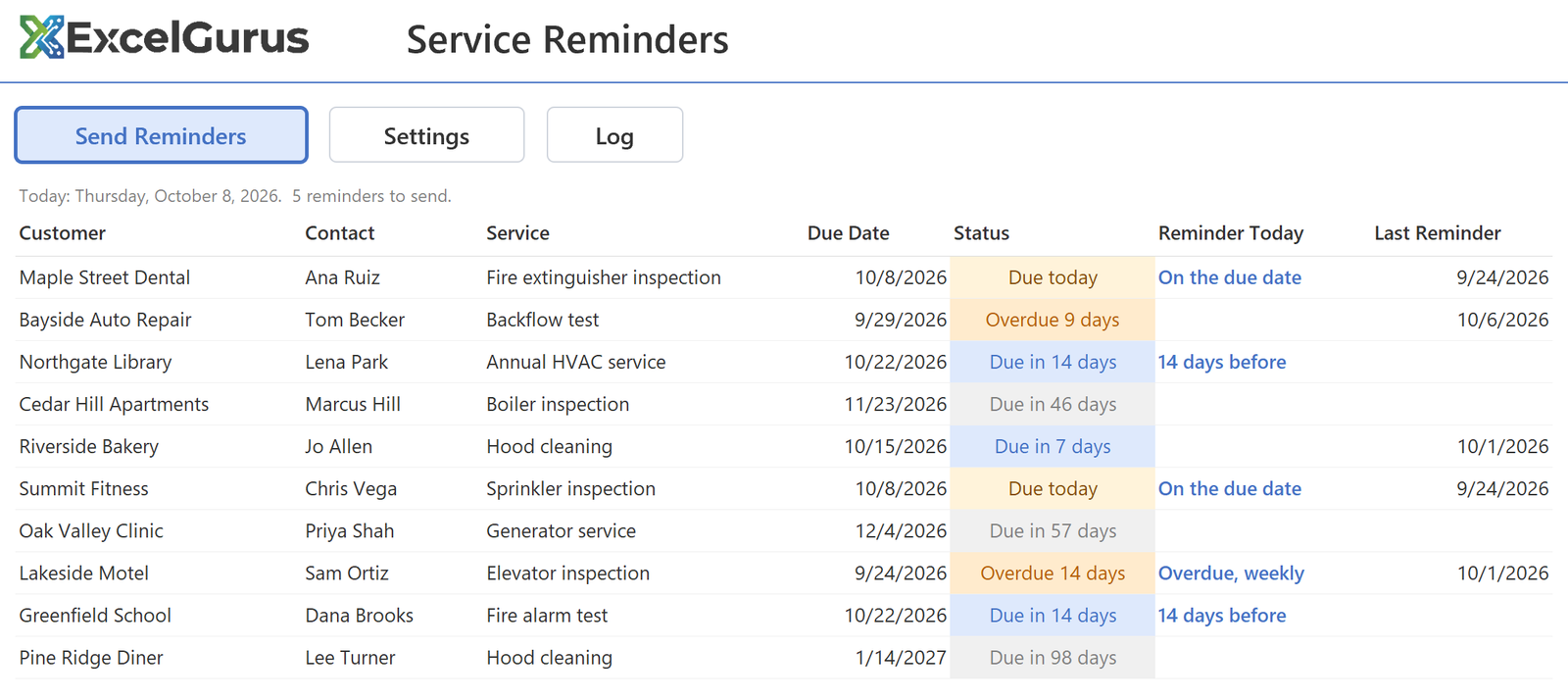
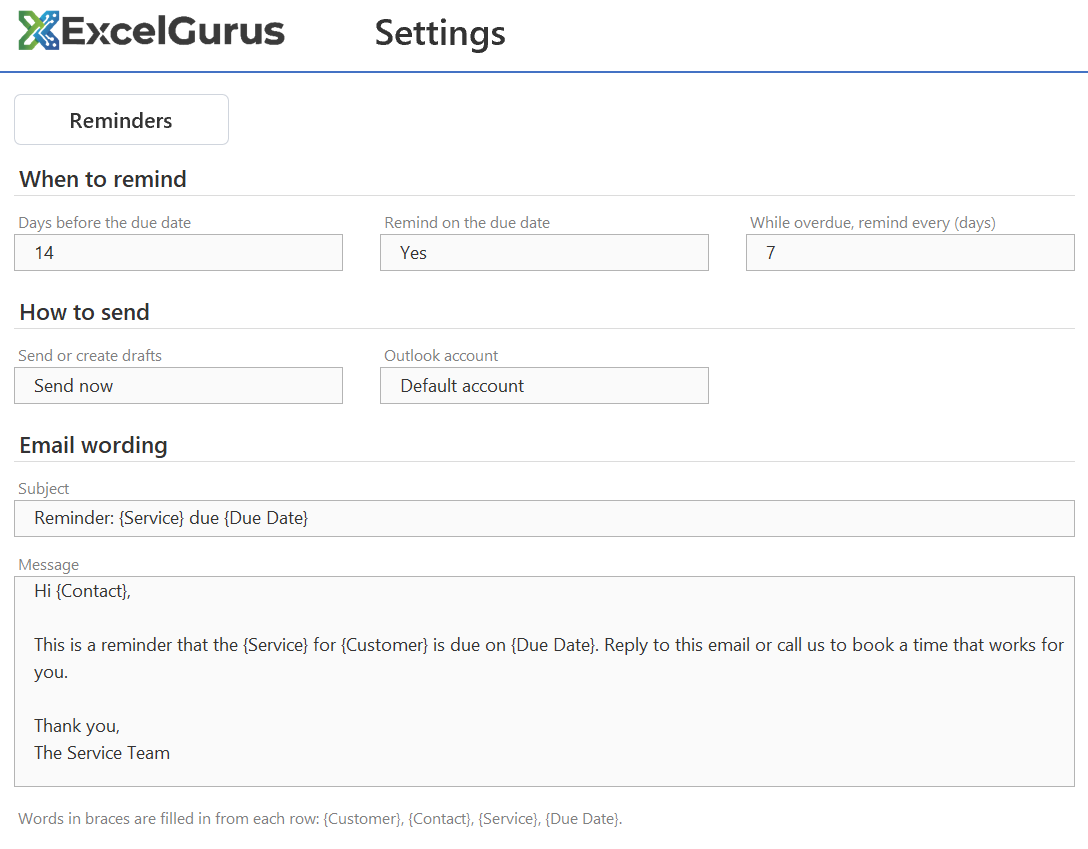
1 The program checks every row and picks the ones that need a reminder today: 14 days before the due date, on the due date, and once a week while a row is overdue. You set those days on the Settings sheet.
2 For each one it creates an email in Outlook from your template, with the customer’s name, the service, the due date and anything else from that row filled in.
3 It writes today’s date in the row and adds a line to the Log sheet, so the same reminder never goes out twice and you can see who was reminded and when.
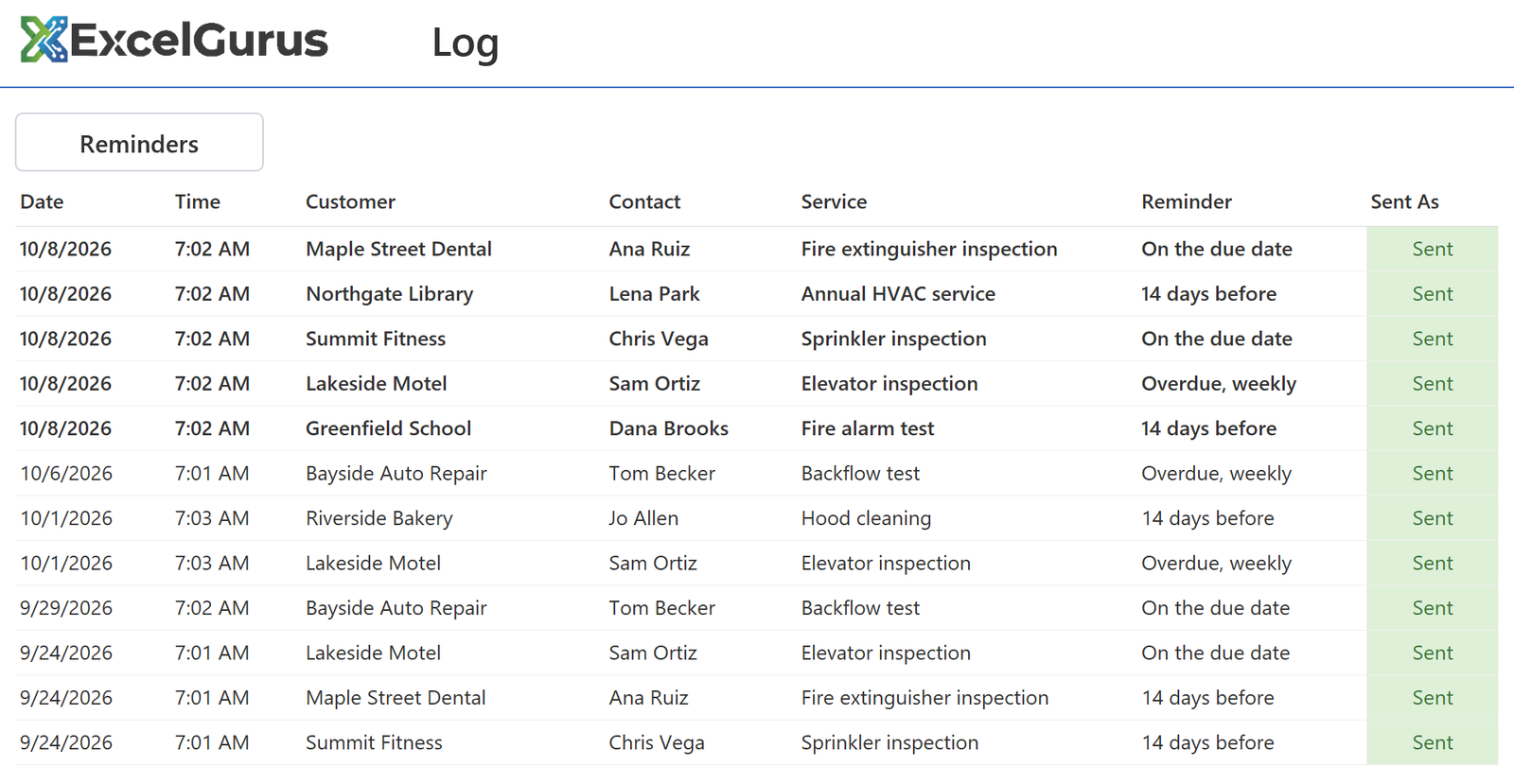
You can have the emails sent right away, or created as drafts so you can read each one before it goes. The wording lives on the Settings sheet, so you can change it any time without touching the code.
If you’d like it to run without anyone clicking, Windows can open the workbook early each morning and the reminders go out on their own. It works with classic Outlook on a Windows PC.
To get started, describe your file below. Once I reply, you can send a copy of the workbook (sample data is fine) and an example of a reminder you send today.
Small fixes start at $69.
Every project gets a fixed-price quote before any work starts: the price you approve is the price you pay.